建立知識庫
Before starting to use AiSK, please create a Knowledge Base first.
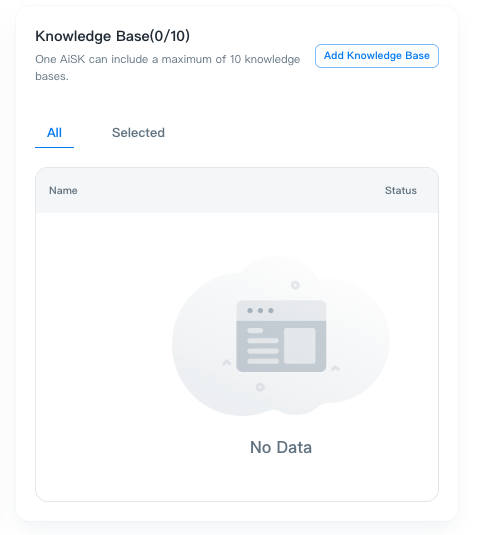
Access “AiSK” via the sidebar on the BlendVision One web console, then click “Add Knowledge Base” to create a new Knowledge Base.
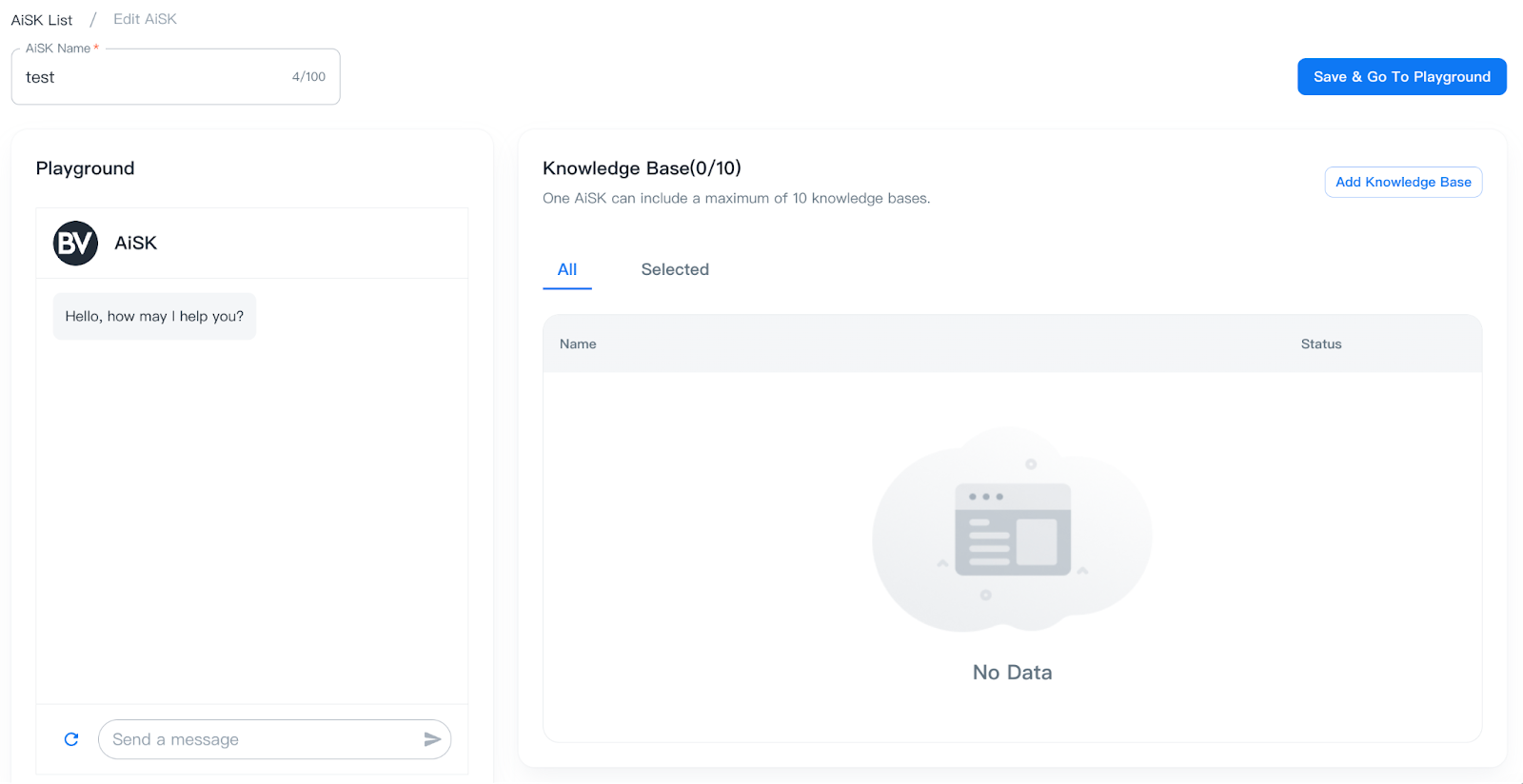
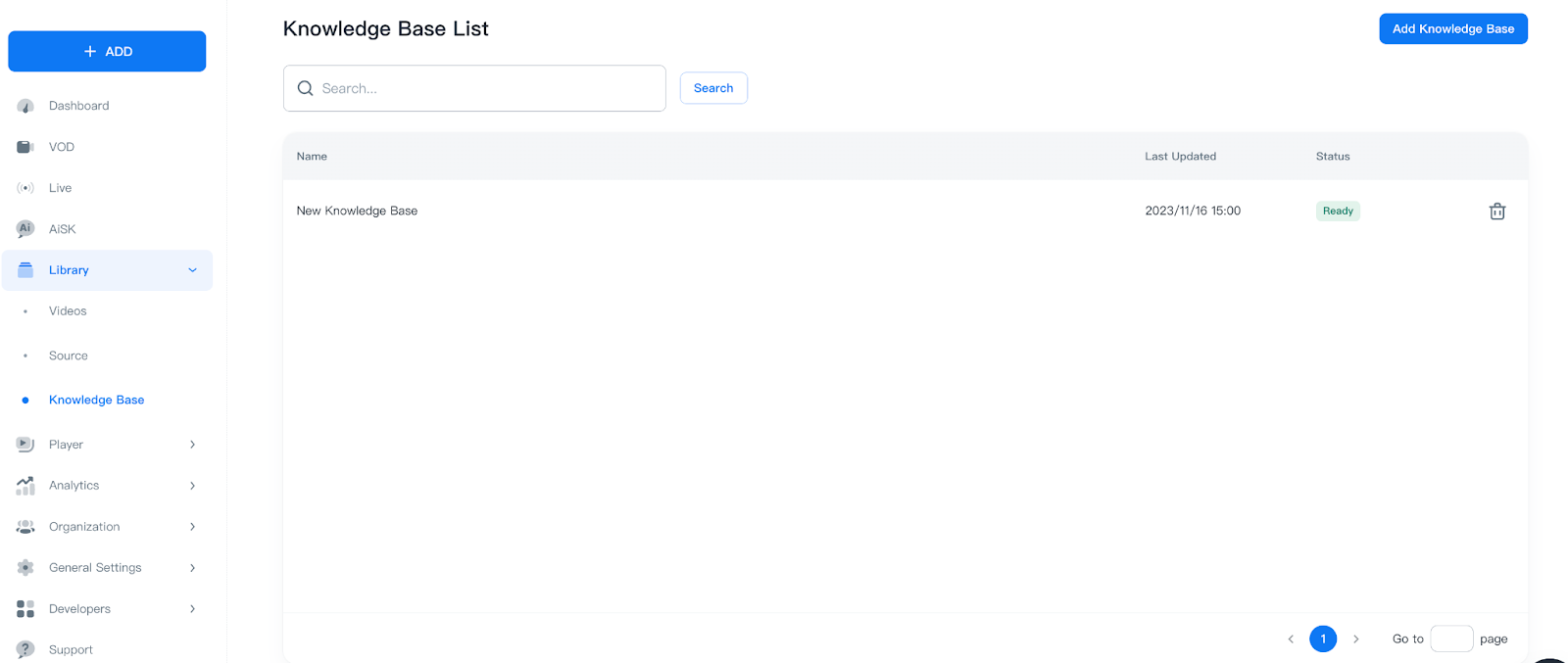
*You can also create Knowledge Base by accessing Library > Knowledge Base under via the sidebar on the BlendVision One web console.
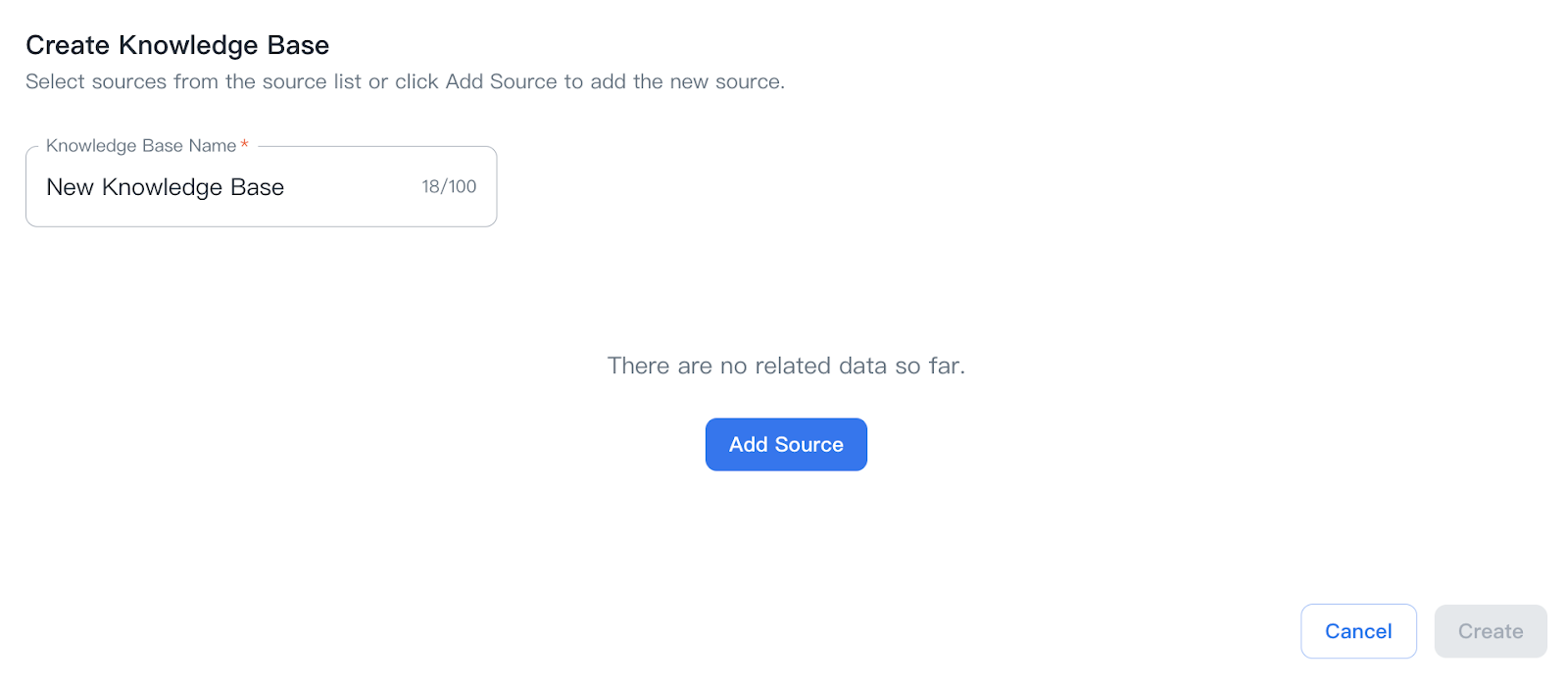
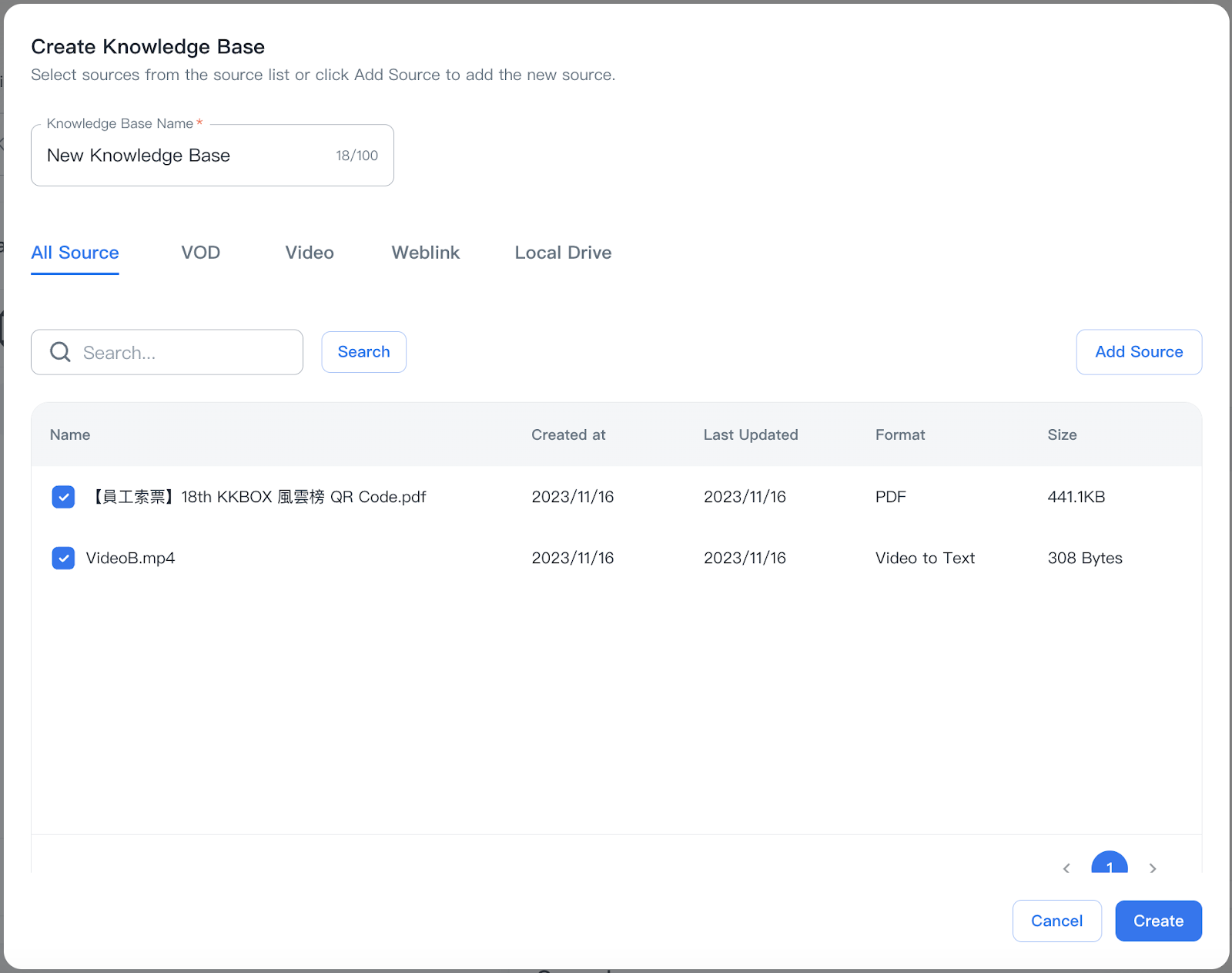
Input your preferred name in the “Knowledge Base Name” field.
Default name is New Knowledge Base. This field is required and must be less than 100 characters.
Click “Add Source” to add a new source in the new Knowledge Base.
*You can also add new sources or select existing sources from Library> Sources.
All Sources will be listed on Library> Sources list and there are different types to add.
If there are no sources in the list, it will display “There is no related data so far”.
Add Source
Click “Add Source” to upload the Sources containing text files (e.g., HTML file) from different types. Please note if the Source only contains image files, it will not be readable.
There are four Source types: (Phase 1) VOD / Video / Weblink / Local Drive listed in below.
VOD
Click “Add Subtitle”
If there is no VOD with subtitles, it will jump to the VOD List page to add a new VOD which you can add subtitles to.
Refer to
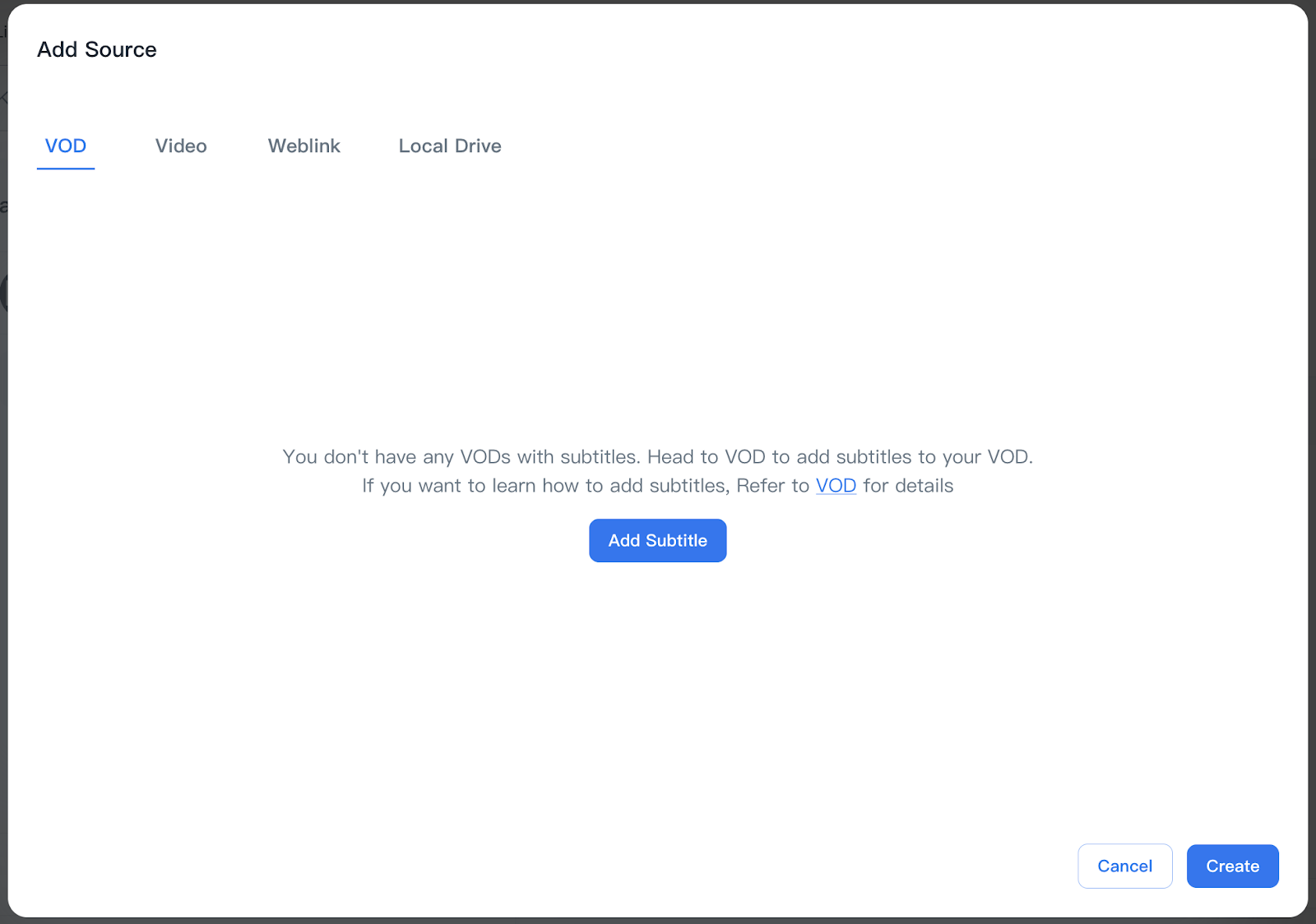
Choose the VOD to be added to Source and click “Create”.
Video
Click “Add Subtitle” if there is no Video with subtitle, and it will jump to the Library> Sources page to add a new Video which you can add subtitles to. 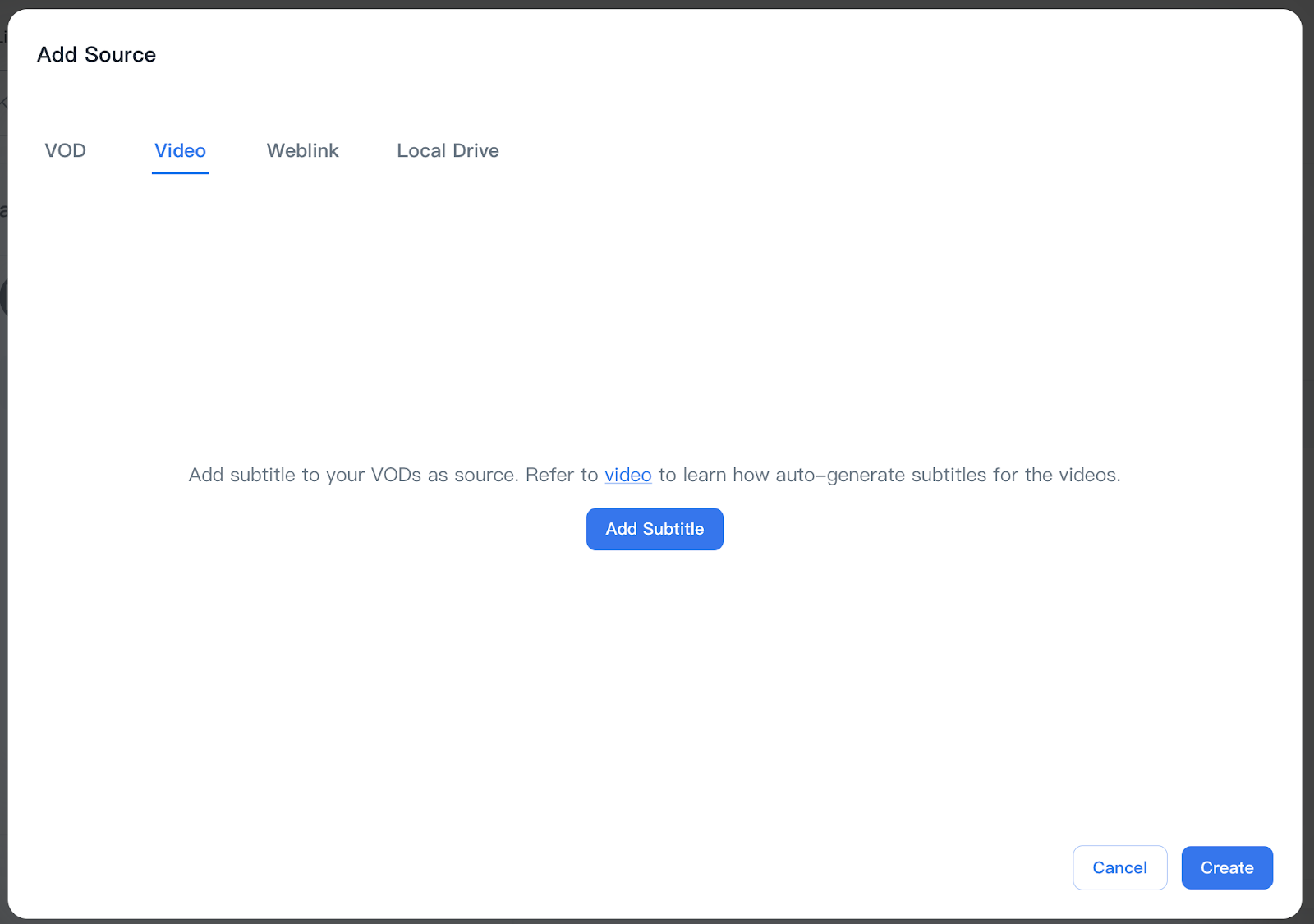
Refer to
Choose the video to be added to Source and click “Create”. 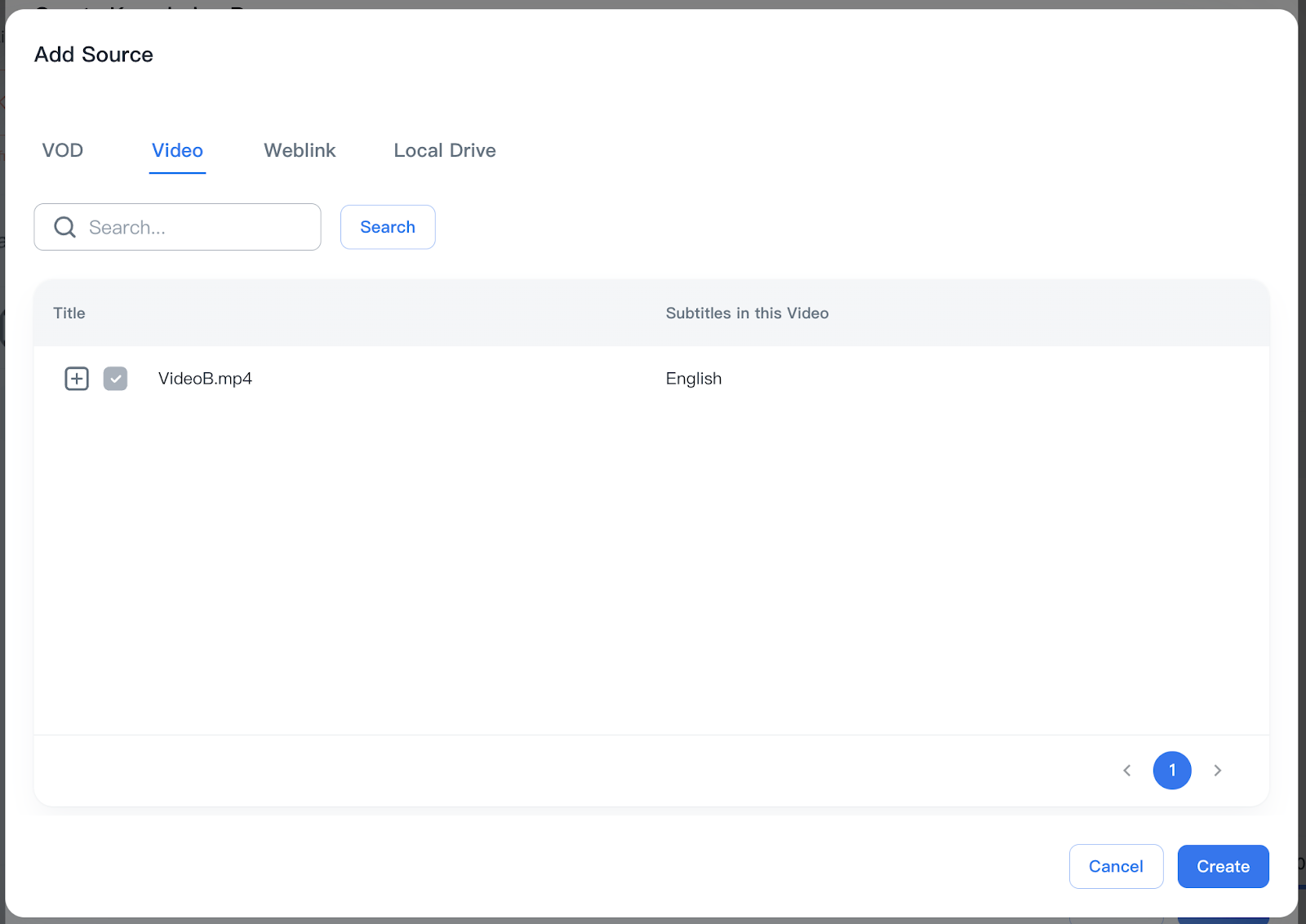
Weblink
If there is no included Weblink, it will show “No Data”. Click Add Source on Weblink tab to add Weblinks as source.
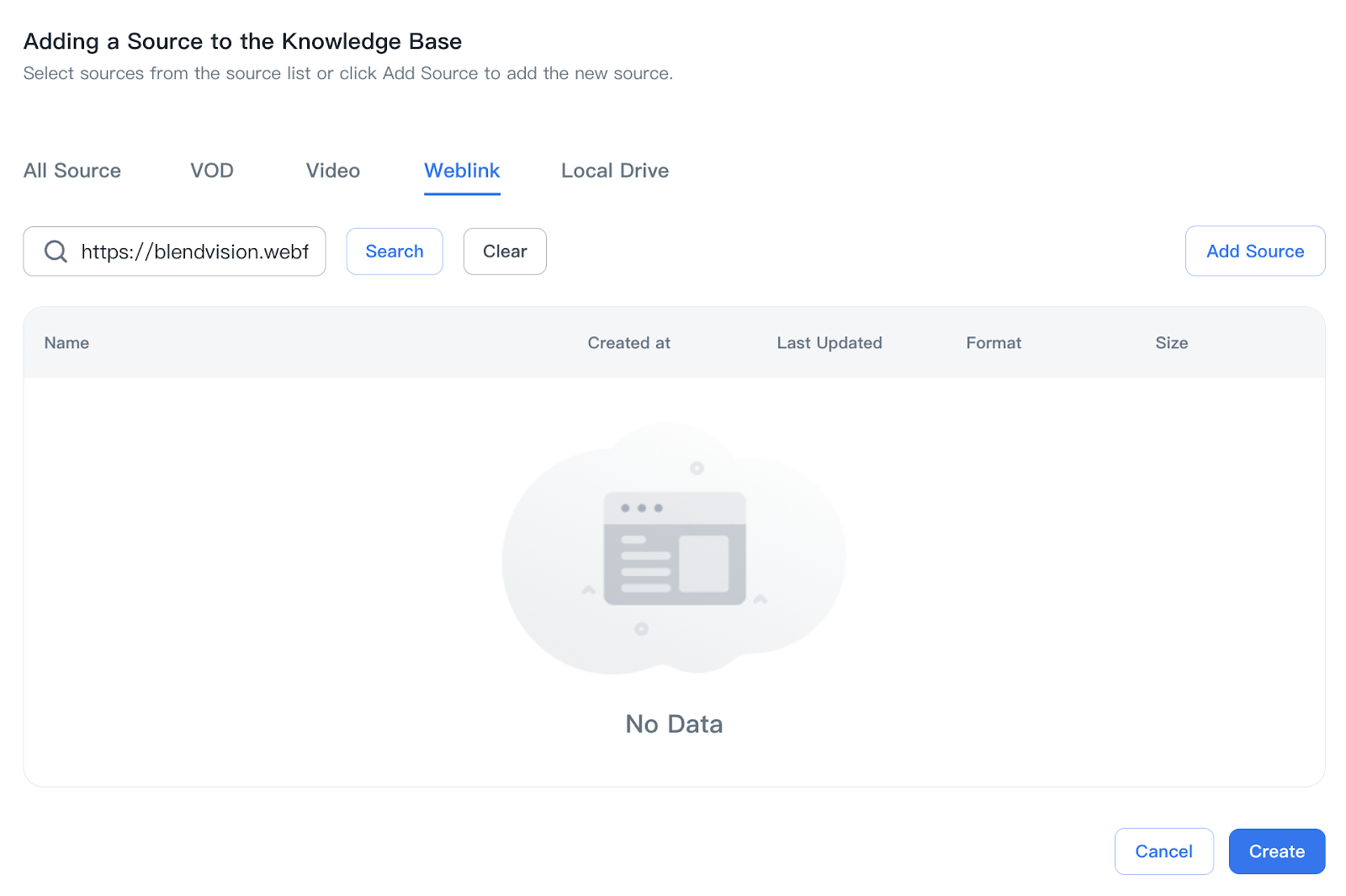
Add a URL to the filling field and click Fetch Links.
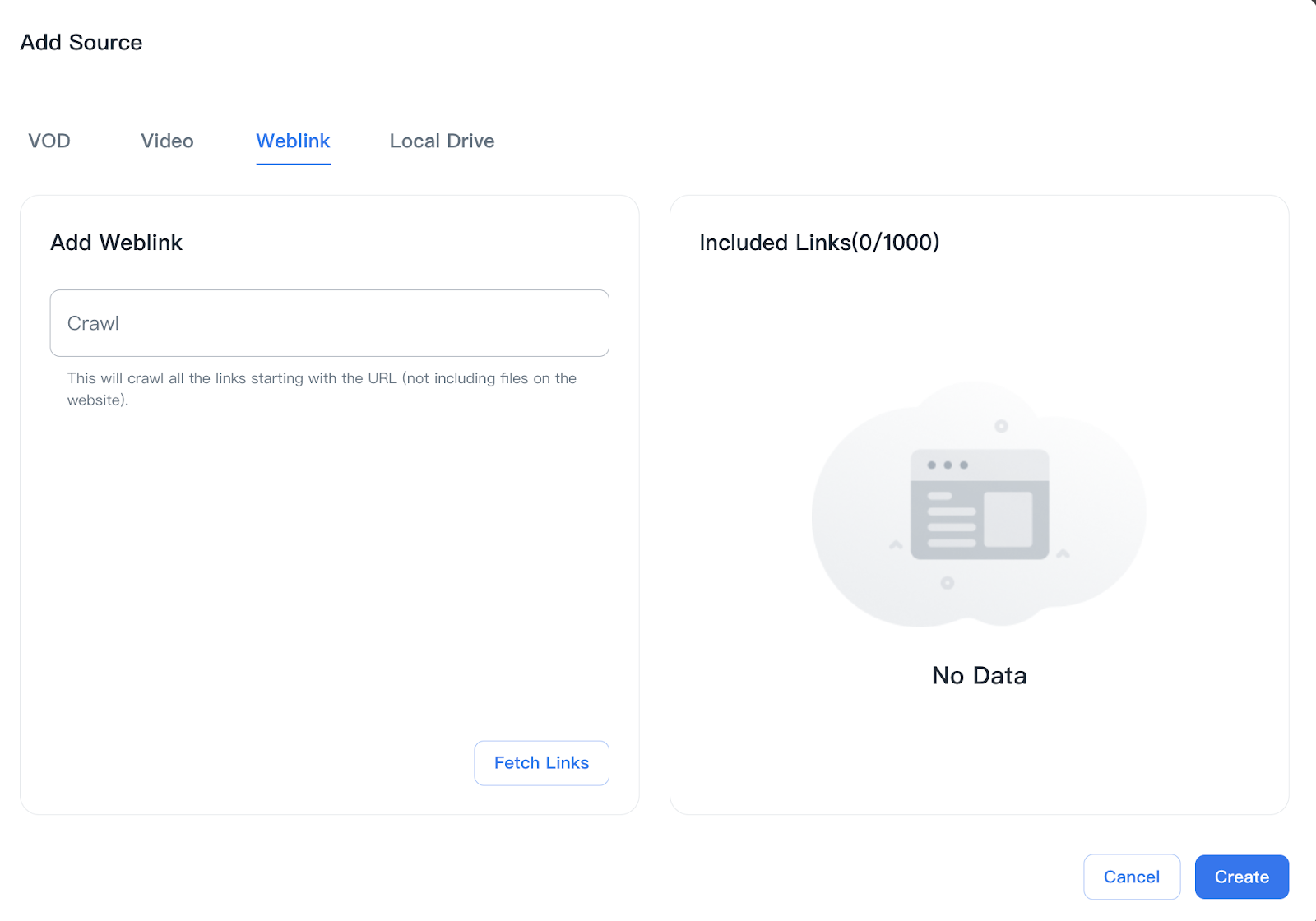
Then, all links starting with the URL will be crawled. The included links can be confirmed on the Included Links field and up to 1000 links can be included.
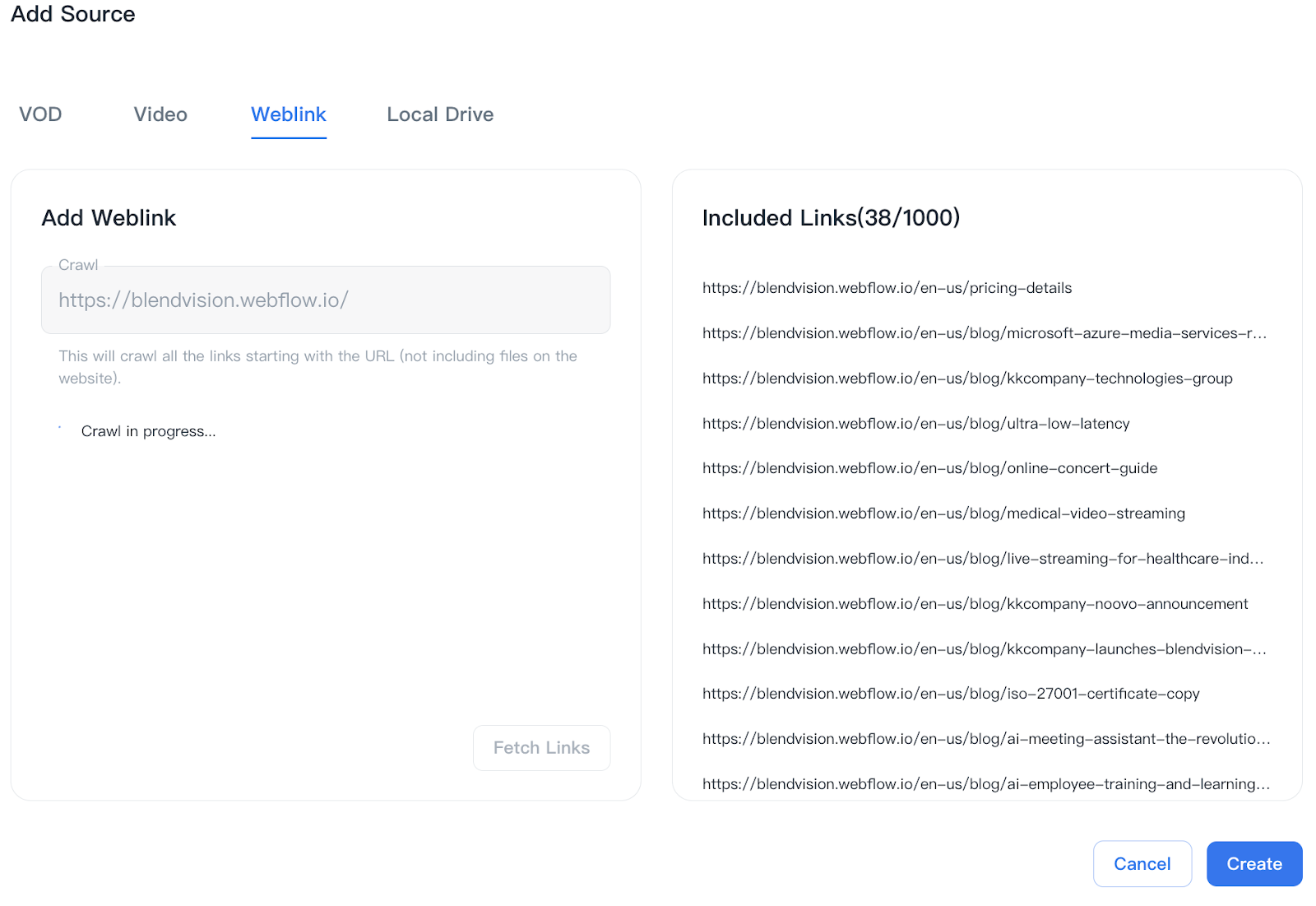
Click Create when the web crawling is completed.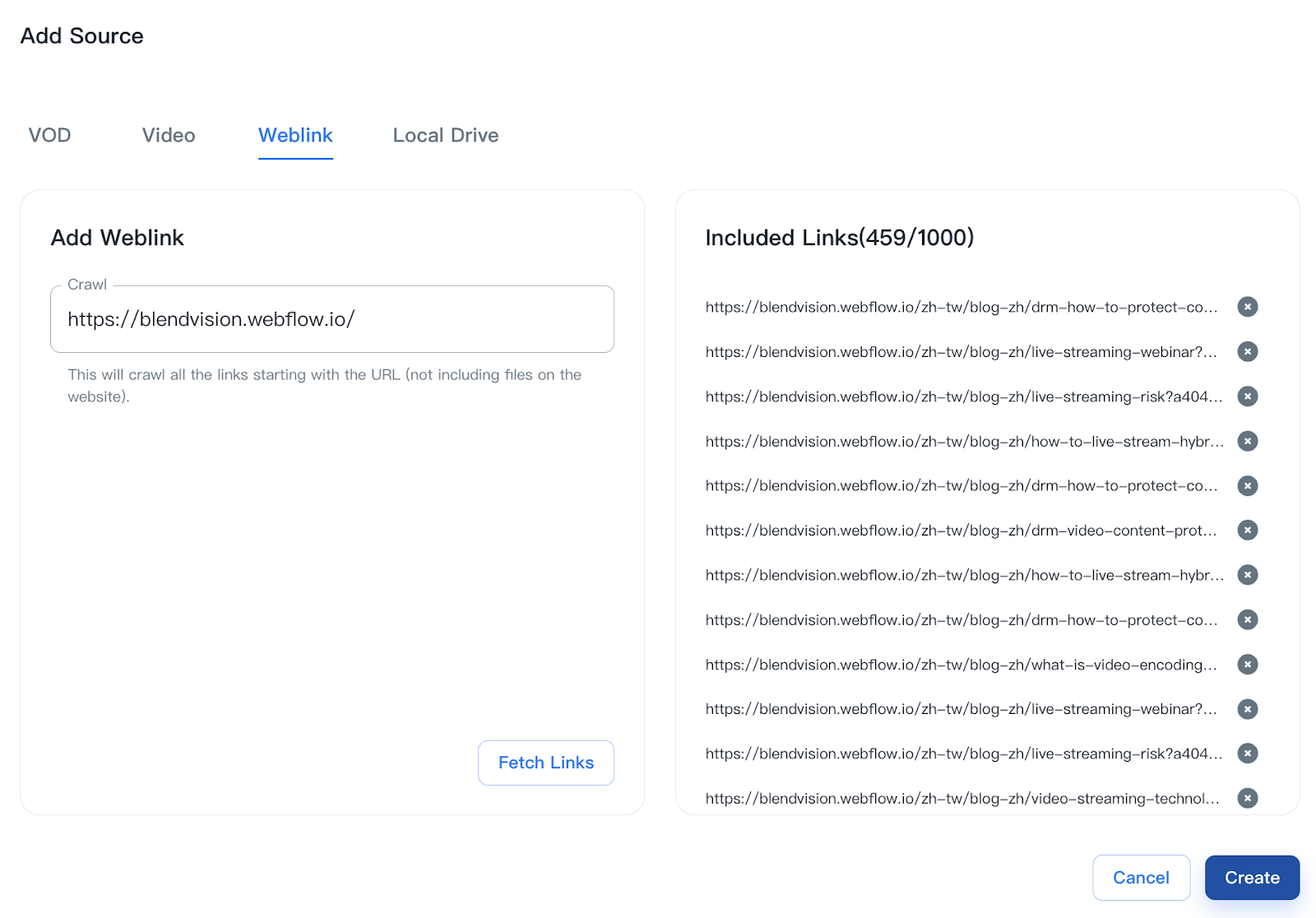
Local Drive
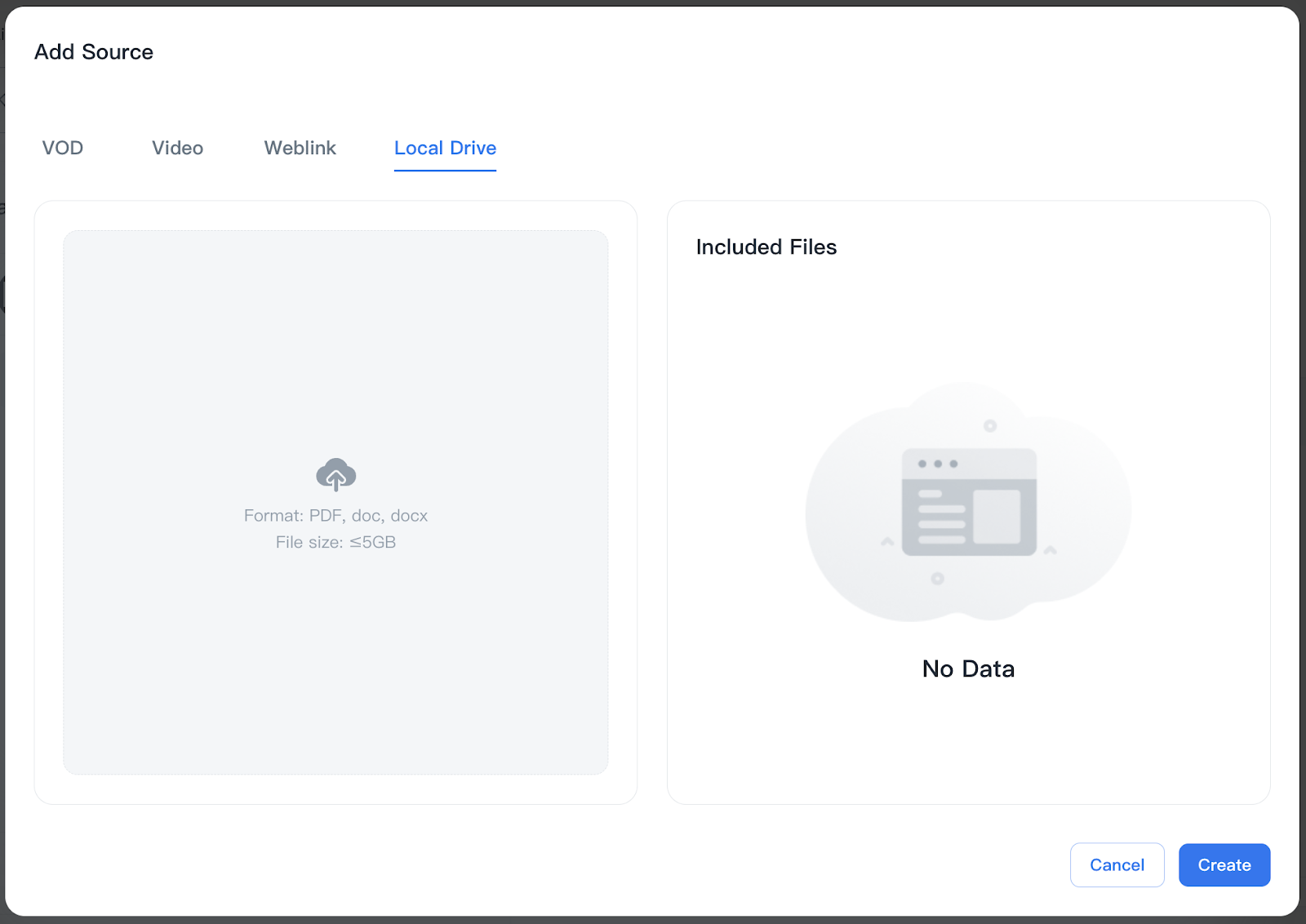
If there is no file included, it will show “No Data”. Click Add Source on Local Drive tab to add file as source.
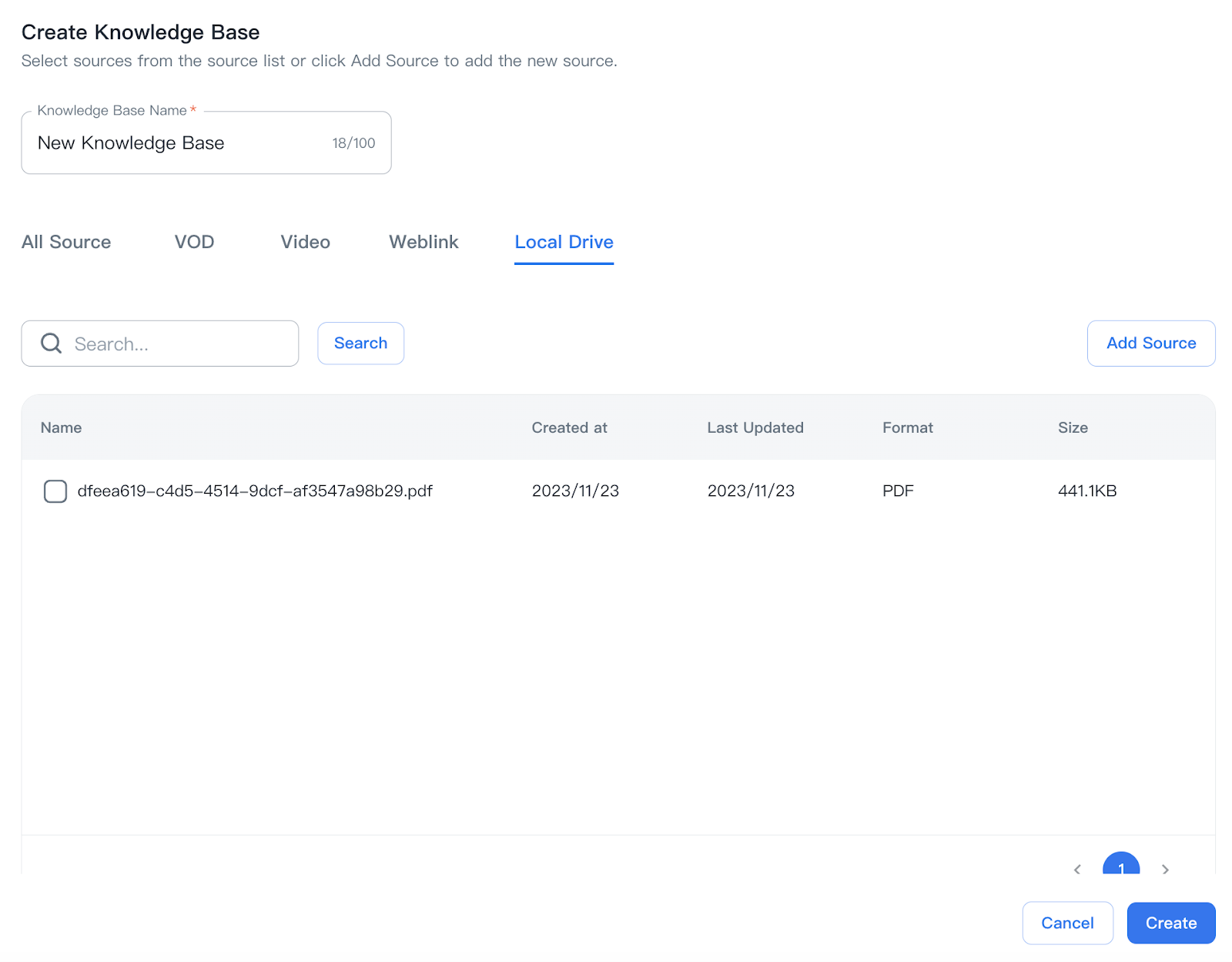
Upload the file from your local and click Create to add Source.
Supported format: PDF, doc, docx; file size should be smaller than 5GB.
After adding Sources from different types, select the sources from the All Source tab and click Create to create your own Knowledge Base. Please note that creating a Knowledge Base requires at least one type of Source.
All created Knowledge Bases and detailed information can be confirmed on the Knowledge Base List. Select the Knowledge Bases you want to add to AiSK.
Note: One AiSK can include a maximum of 10 knowledge bases.
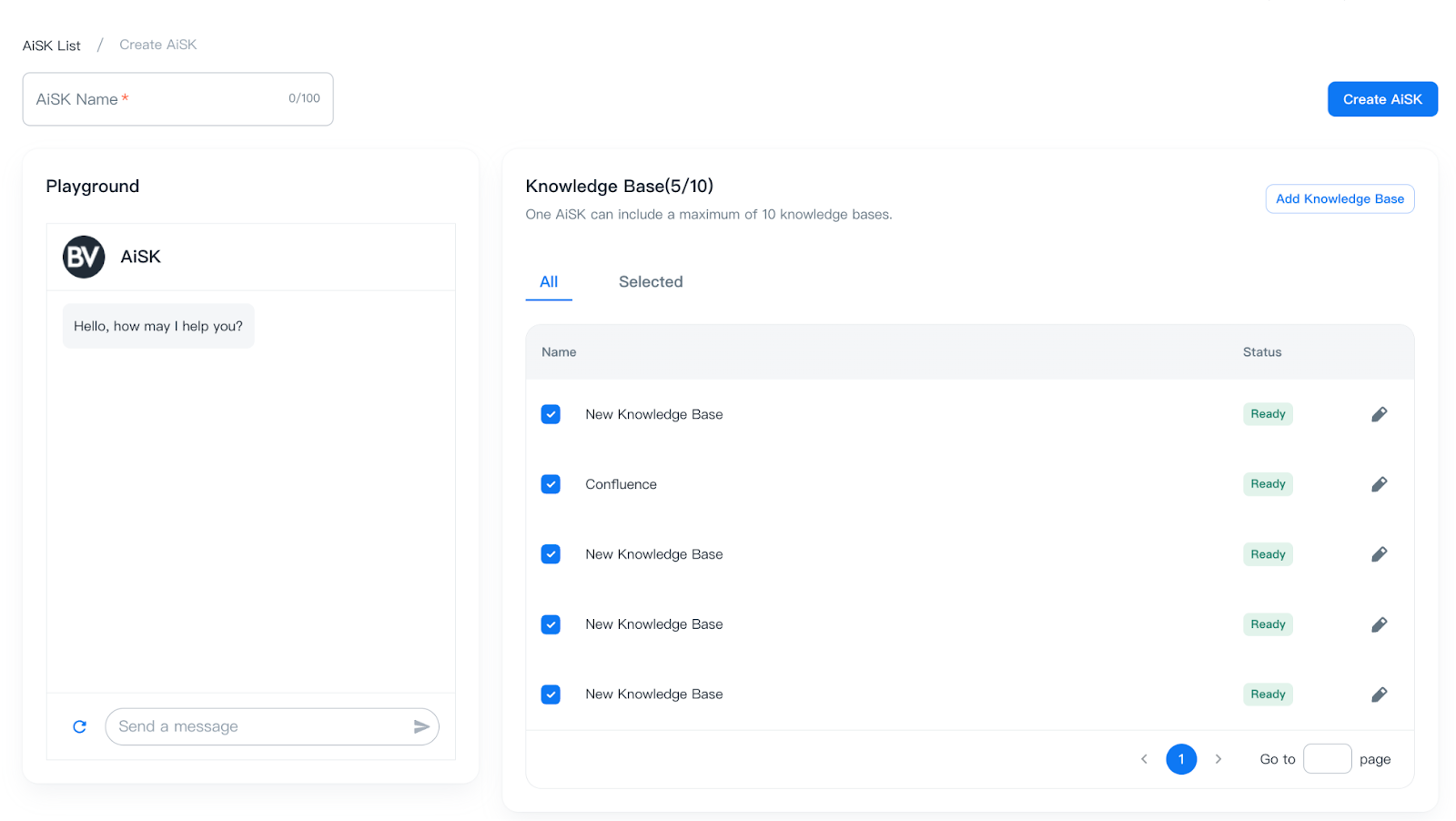
Knowledge Base List sorts in descending order based on the last update.
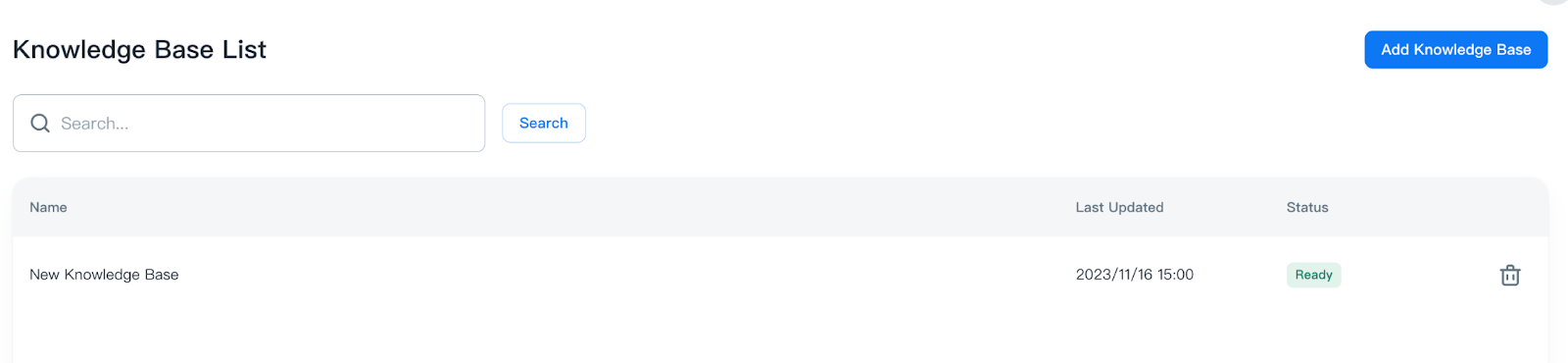
- Item on the Knowledge Base List
- Name: Display name of Knowledge Base
- Last Updated: The last time you updated Knowledge Base
- Status: The status of Knowledge Base
When Knowledge Bases are created, please go back to <Create AiSK**>** for other settings.
Edit Knowledge Base
Library> Knowledge Base
You can edit its “Knowledge Base Name” and add or delete the Sources of the Knowledge Base you selected
Please notice that deleting a source will have an impact on the corresponding Knowledge Base and AiSK.
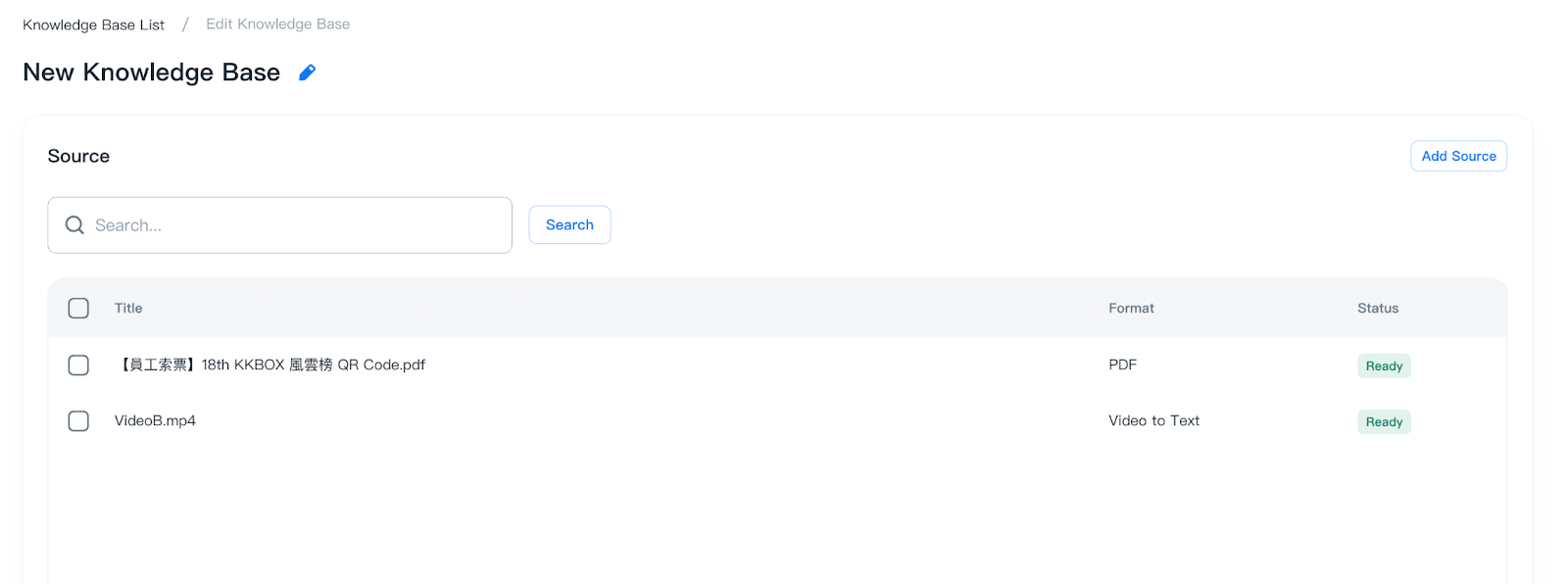
Edit Source
You can edit “Source Name” and delete Sources in Library> Sources.
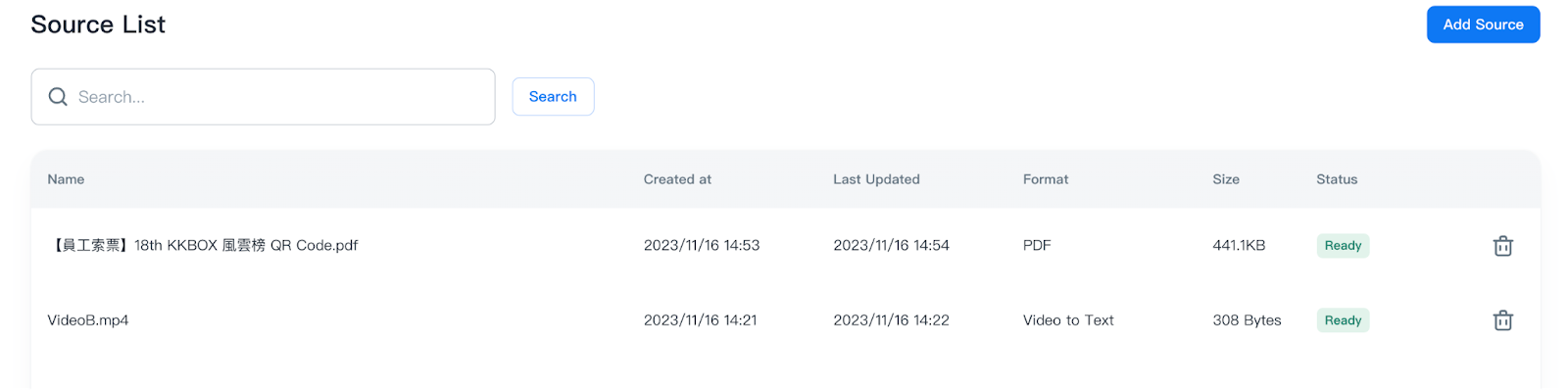 Items and icon on the Source List:
- Item
- Name: Display name of Source
- Created at: The time Source has created
- Last Updated: The last time you updated Source
- Format:
- VOD: VOD to Text
- Video: Video to Text
- Weblink: Weblink
- Local Drive: PDF, docx, doc
- Size: The size of Source
- Status: The status of Source
- Icon
 : Update Source
 : Delete Source
Status
There are six statuses for Source, please find each status’ details in the table below.
Status
Video Details
Edit
Delete
Ingesting
Yes
No
Yes
Preparing
Yes
No
No
Ready
Yes
Yes
Yes
Updating
Yes
No
No
Deleting
No
No
No
Failed
No
No
Yes
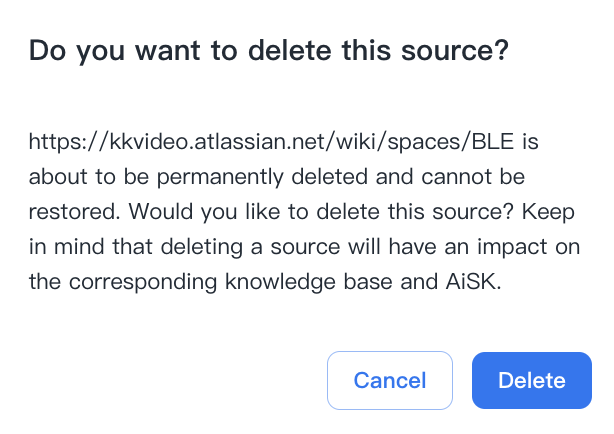
Delete Source
Click the delete icon to delete Source.
Please notice that deleting a source will have an impact on the corresponding Knowledge Base and AiSK.
Delete Knowlege Base
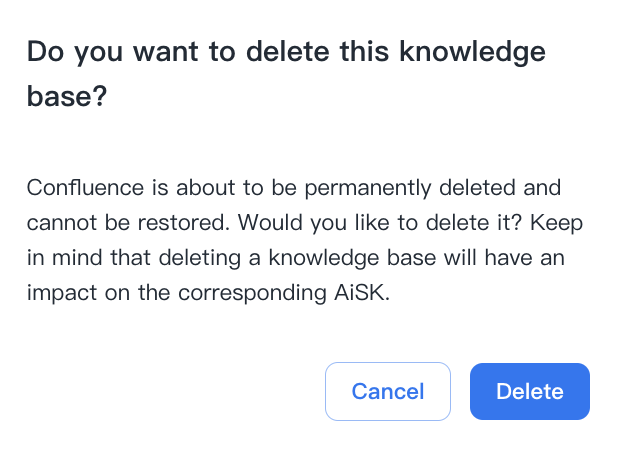
You can delete Knowledge Bases in Knowledge Base List via Delete icon.
Please notice that deleting a Knowledge Base will have an impact on the corresponding AiSK.
Status
There are four statuses for Knowledge Base, please find each status’ details in the table below.
Status
View Details
Edit Knowledge Base Name
Add/Edit Souce
Delete Knowledge Base
Processing
Yes
Yes
Yes
No
Ready
Yes
Yes
Yes
Yes
Failed
No
No
No
Yes
Deleting
No
No
No
No