Set up Cover Images
BlendVision allows you to set up a cover image that is shown during the unpublishing period for each encoded VOD.
In this article, We’ll introduce the detailed steps for editing the cover image for encoded VODs:
Access editing page of encoded VOD
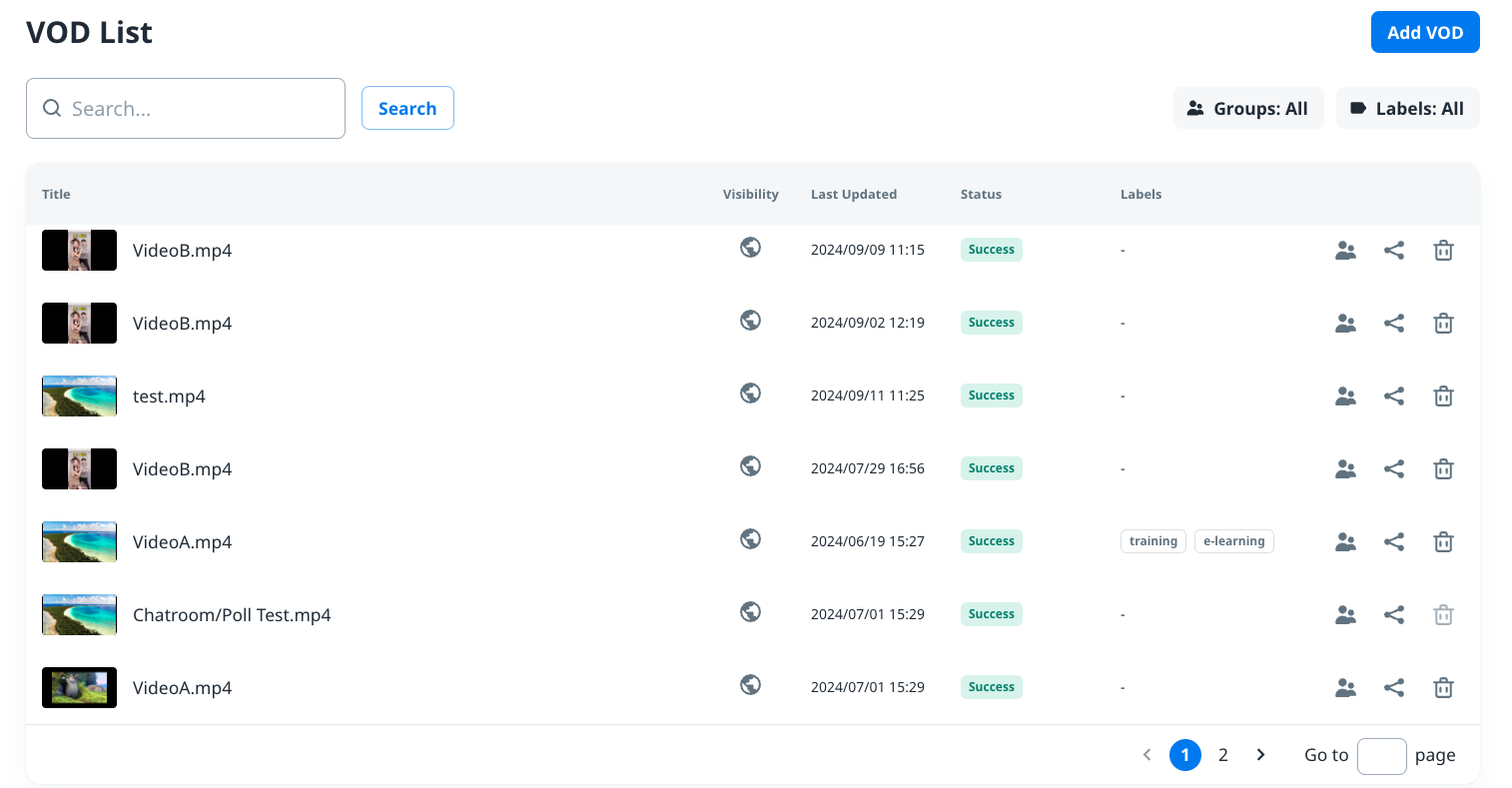
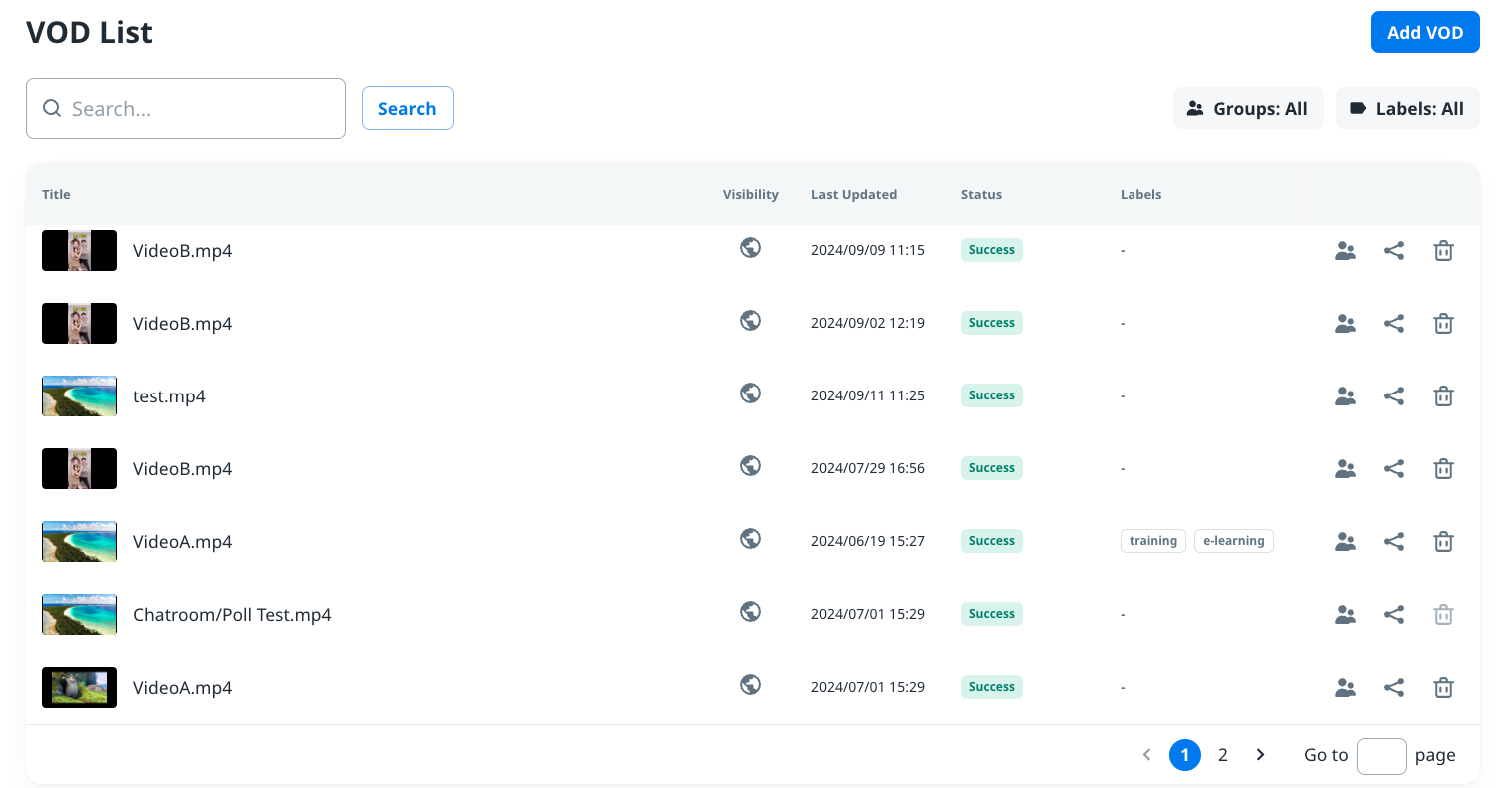
1. Refer to Edit a VOD to access the VOD setting page via VOD List.
2. To set up cover image, access the Image tab**.**
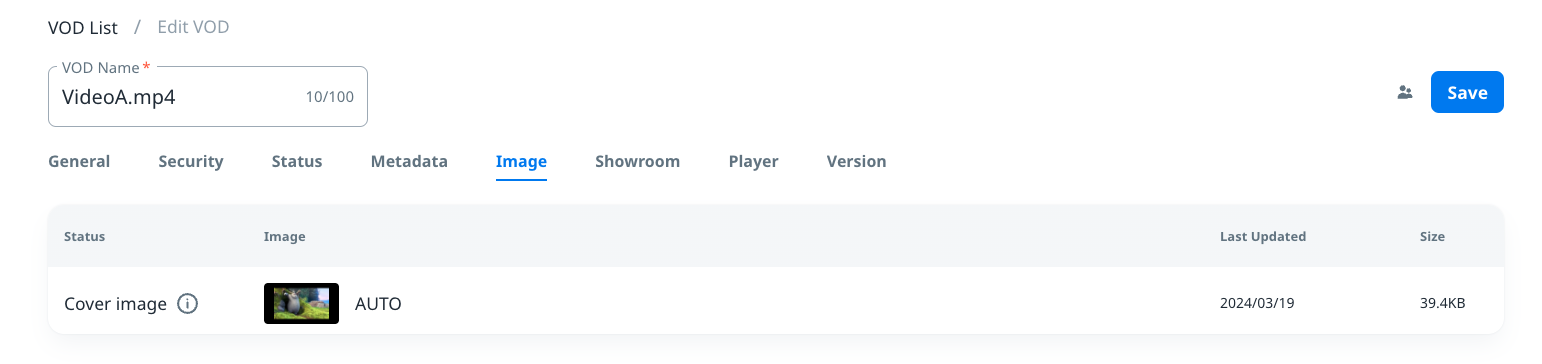
Manage the cover image of VOD
3. Click the preview thumbnail of Image column to show the pop-up menu for editing.
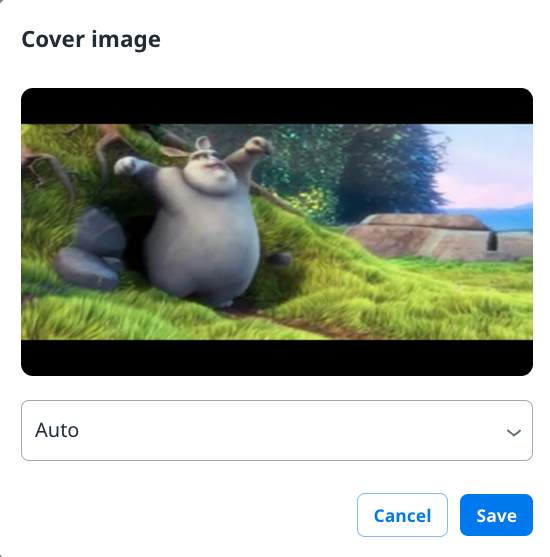
4. Select the type from below 2 options, then press “Save” button to start uploading:
- AUTO: default option
- Custom: Upload an image file from local as cover image
- File format: png, jpg, jpeg
- File size: < 5 MB
- Best raito: 16:9
5. Once uploading is completed, you can confirm the preview thumbnail in Image tab.
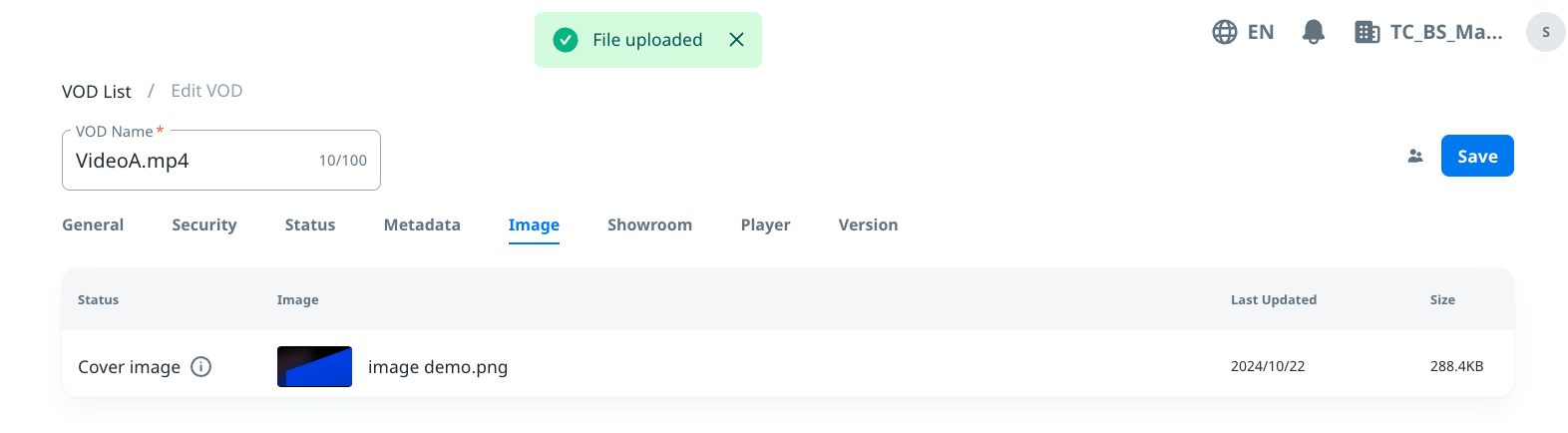
6. You need to press “Save” button displayed on the upper-right side to submit the edited result.
- If you want to know more editable settings when editing an encoded VOD, refer to Edit a VOD.