Customize Profiles
Profiles define the video resolution, video bitrate, and audio bitrate output for encoding. Furthermore, it also affects the cost of encoding, storage, and CDN usage of the VOD.
BlendVision allows you to use customized or preset ProfileSets to configure encoding for VOD.
This article details information on preset profiles and steps on how to create and manage customized profiles.
Before we start
-
In BlendVision, the output format of encoded VOD (such as resolution and codec) is defined by the ProfileSet chosen.
Profiles are a part of ProfileSets. Please refer to VOD ProfileSets for information on the relation between profiles and ProfileSets.
-
Changes to ProfileSets/profiles will not impact previously encoded VODs. To implement the changes, please create a new VOD and select the preferred ProfileSets.
Preset profiles
Preset profile configurations in BlendVision are detailed in the following table:
Name
Video Codec
Resolution
Standard
Video Bitrate
Audio Bitrate
Frame Rate
2160p-40Mbps
H.264
3840x2160
4K
40.00 Mbps
192 kbps
60fps
2160p-20Mbps
H.264
3840x2160
4K
20.00 Mbps
192 kbps
30fps
1080p-10Mbps
H.264
1920x1080
FHD
10.00 Mbps
128 kbps
60fps
1080p-5Mbps
H.264
1920x1080
FHD
5.00 Mbps
128 kbps
30fps
720p-5Mbps
H.264
1440x720
HD
5.00 Mbps
128 kbps
60fps
720p-2.5Mbps
H.264
1440x720
HD
2.50 Mbps
128 kbps
30fps
480p-3Mbps
H.264
850x480
SD
3.00 Mbps
96 kbps
60fps
480p-1.5Mbps
H.264
850x480
SD
1.50 Mbps
96 kbps
30fps
360p-1.4Mbps
H.264
640x360
SD
1.40 Mbps
96 kbps
60fps
360p-700kbps
H.264
640x360
SD
700 kbps
96 kbps
30fps
240p-800kbps
H.264
426x240
SD
800 kbps
64 kbps
60fps
240p-400kbps
H.264
426x240
SD
400 kbps
64 kbps
30fps
2160p-20Mbps
H.265
3840x2160
4K
20.00 Mbps
192 kbps
60fps
2160p-10Mbps
H.265
3840x2160
4K
10.00 Mbps
192 kbps
30fps
1080p-5Mbps
H.265
1920x1080
FHD
5.00 Mbps
128 kbps
60fps
1080p-2.5Mbps
H.265
1920x1080
FHD
2.50 Mbps
128 kbps
30fps
720P-3.5 Mbps
H.265
1440x720
HD
3.5 Mbps
128 kbps
60fps
720P-1.7 Mbps
H.265
1440x720
HD
1.7 Mbps
128 kbps
30fps
480P-2.1 Mbps
H.265
850X480
SD
2.1 Mbps
128 kbps
60fps
480P-1.0 Mbps
H.265
850x480
SD
1.0 Mbps
96 kbps
30fps
360P-1.0 Mbps
H.265
640x360
SD
1.0 Mbps
96 kbps
60fps
360P-500 kbps
H.265
640x360
SD
500 Kbps
64 kbps
30fps
240P-500 kbps
H.265
426x240
SD
500 kbps
64 kbps
60fps
240P-300 kbps
H.265
426x240
SD
300 kbps
64 kbps
30fps
These profiles already applied into the preset ProfileSets provided. You may choose to use the preset ProfileSets or apply these profiles into your custom ProfileSets.
Customized profiles
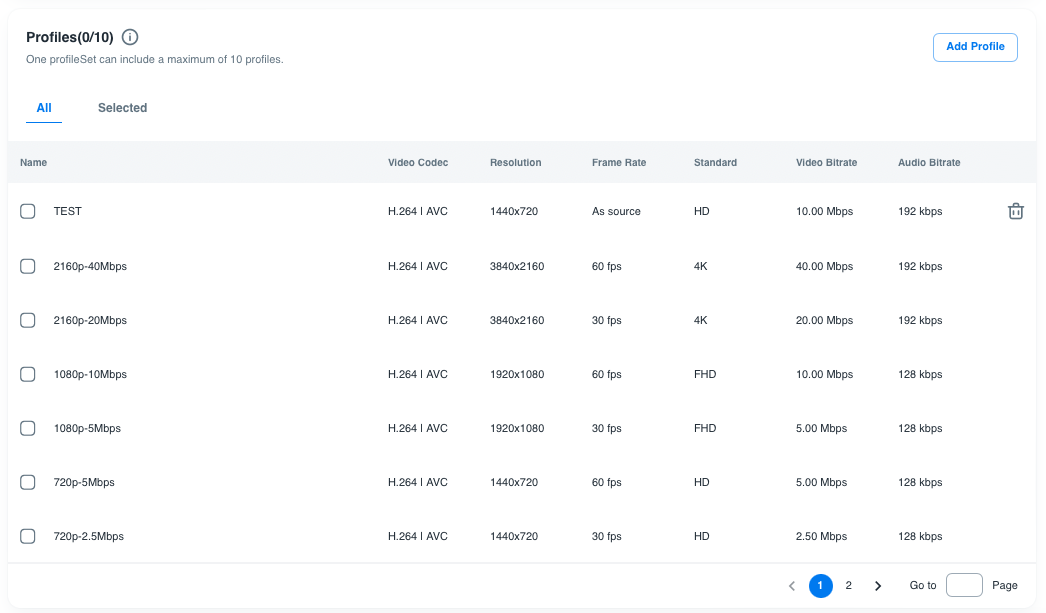
To customize profiles, create or edit a custom ProfileSet to access the Profiles list on the ProfileSet’s creation/edit page.
The following article sections detail how to create and manage custom profiles:
Add custom profiles
In order to create a custom profile, please refer to the following steps:
1. Press the “Add Profile” button displayed in the Profiles list in the ProfileSet's creation/edit page.
2. An “Add profiles” pop-up will display, allowing you to set up the configurations of the new profile:
- The video codec (H.264 or H.265) will be limited by the configurations of the ProfileSet. If you want to change the codec, please refer to Customize ProfileSets to change the “ProfileSet Configuration”.
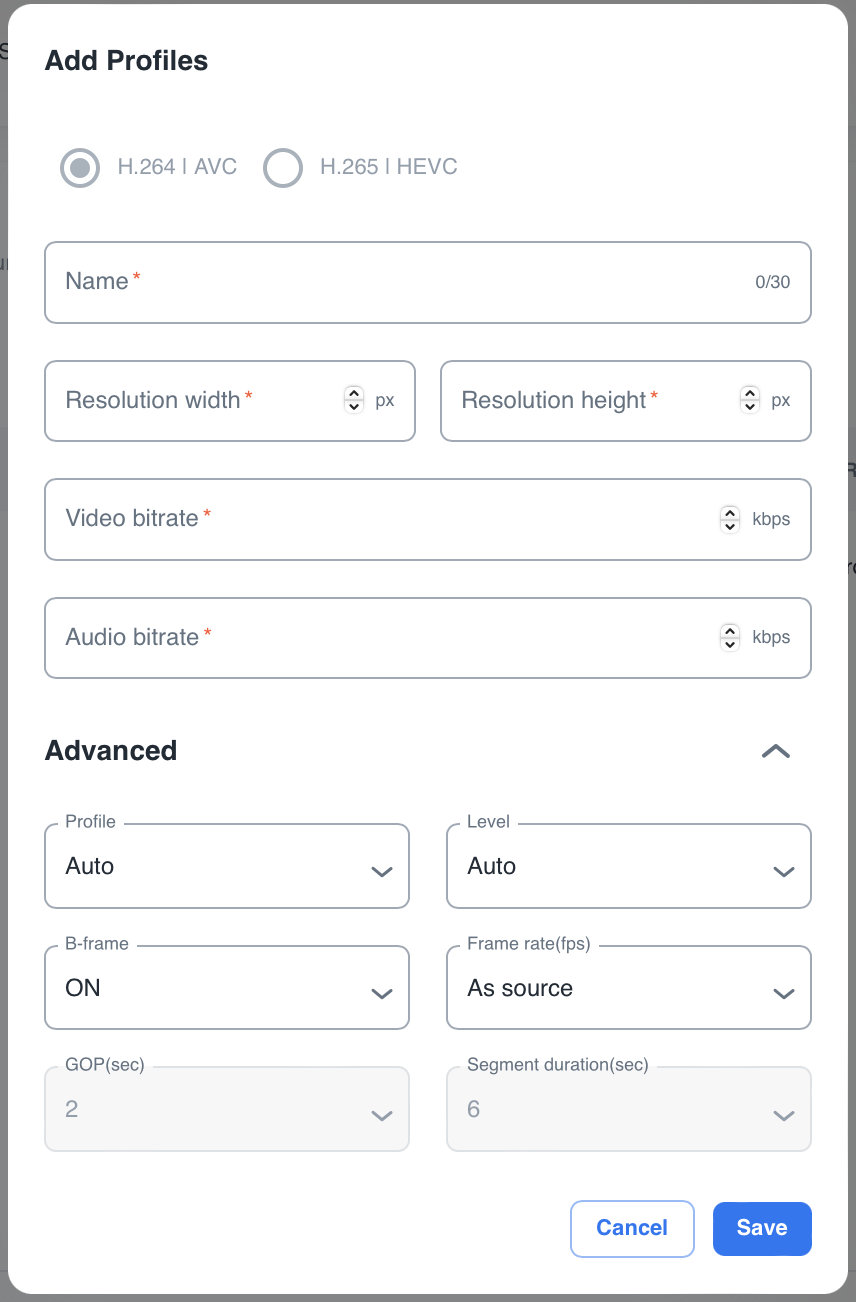
3. Set up the basic configurations for the new profile:
- Name: enter the profile name that will be displayed in the profile list. (up to 30 characters)
- Resolution width: defines the horizontal video resolution. Enter an even number between 128 and 4096.
- Resolution height: defines the vertical video resolution. Enter an even number between 128 and 2304.
- Video bitrate: defines the amount of data transmitted during video streaming (kbps)
- If the video codec is H.264, enter a number between 60 and 60000.
- If the video codec is H.265: enter a number between 60 and 45000.
- Audio bitrate: defines the amount of data transmitted during audio streaming (kbps). Enter a number between 24 and 384.
4. (Optional) You can set up advanced settings for the new profile if needed:
Note: these values will be limited by the video codec of the ProfileSet.
Field Name
Definition
Video codec: H.264
Video codec: H.265
Profile
Specifies which coding tools and algorithms are used for streaming
-
Auto (Default)
-
Baseline
-
Main
-
High
-
Auto (Default)
-
Main10
Level
Specifies the processing load and storage capacity of the decoder.
-
Auto (Default)
-
1
-
1.1
-
1.2
-
1.3
-
- 2
-
- 2.1
-
- 2.2
-
- 3
-
- 3.1
-
- 3.2
-
- 4
-
- 4.1
-
- 4.2
-
- 5
-
- 5.1
-
- 5.2
-
Auto (Default)
-
1
-
2
-
2.1
-
3
-
3.1
-
4
-
4.1
-
5
-
5.1
-
6
B-frame
Defines whether to enable bi-predictive frames to enhance video compression and reduce data transmission to allow for smoother streaming.
- On (Default)
- Off
If the Profile field is set as “Baseline”, B-frame will be fixed as "Off"
- On (Default)
- Off
Frame Rate
Defines the number of frames displayed per second.
-
As source (Default)
-
10
-
15
-
23.97
-
24
-
25
-
29.97
-
30
-
50
-
59.94
-
60
-
As source (Default)
-
10
-
15
-
23.97
-
24
-
25
-
29.97
-
30
-
50
-
59.94
-
60
GOP (Sec)
Defines the number of GOP (group of pictures) per second.
The value is fixed as “2”.
Segment (Sec)
Defines the duration (in seconds) for each segment in the video stream.
The value is fixed as “6”.
5. Press the “Save” button to submit the new profile. A notification will display, confirming the custom profile was created.

Note: After the custom profile is created, apply it by creating or editing a custom ProfileSet.
Delete custom profiles
Before deleting profiles, beware of the following:
- Preset profiles can not be deleted.
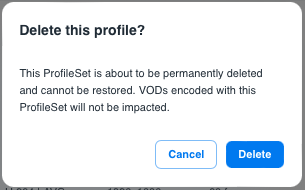
- Once a custom profile is deleted, it can not be restored.
- Deleting a custom profile will not impact VODs that are already encoded.
To permanently delete custom profiles, please refer to the following steps:
1. Find the profile you want to delete in the Profiles list in the ProfileSet's creation/edit page, then click the delete icon on the right side.
2. A pop-up window will display. Press the “Delete” button to confirm the deletion.
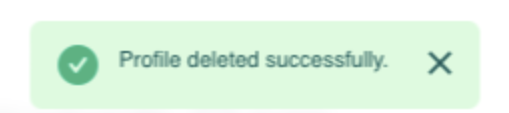
3. A notification will display, confirming the custom profile was deleted.
- Deleted profiles will also be removed from all ProfileSets.