Download Analytic Reports
Download Analytic Reports
BlendVision allows you to download reports for overall performance or per content via the Analytics module.
In this article details steps on how to download reports:
- Before we start
- Download reports from Analytics Module
- Report formats
Before we start
- We suggest referring to the Analytics Module Introduction first to learn how to access the Analytics module on the BlendVision web console, and its key features.
- Overview Analysis for overall trends and usage with visualized graphics
Download reports from Analytics module
The Analytics module allows you to download the report in the following ways:
- Reports for Overview Analytics
- Reports for Individual VOD Analytics
- Reports for Individual AOD Analytics
- Reports for Individual Livestream Analytics
Reports for Overview Analytics
You can download the performance report in .csv format from the Overview tab in the Analytics module:
1. Refer to Overview Analysis to access the Overview tab in the Analytics module, then set up the filters below to your preferred settings:
- Overall filters:
- Streaming Type
- Time Range
- Performance filters:
- Device
- Geo-Region
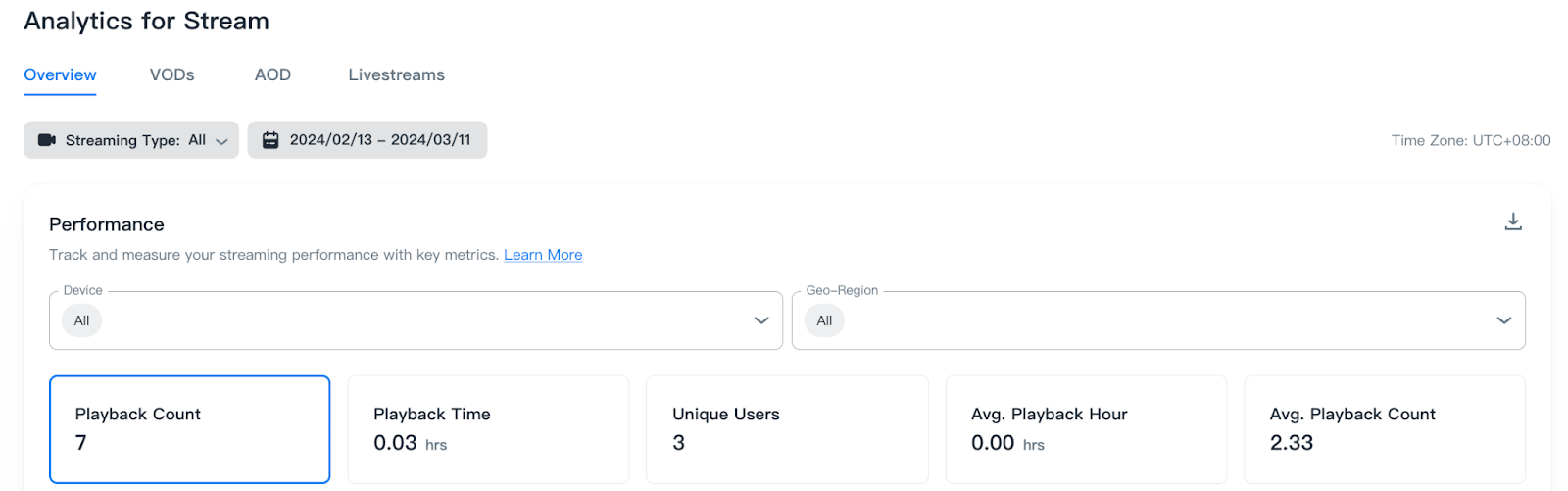
2. Click the download icon shown on the upper-right corner of the Performance section.
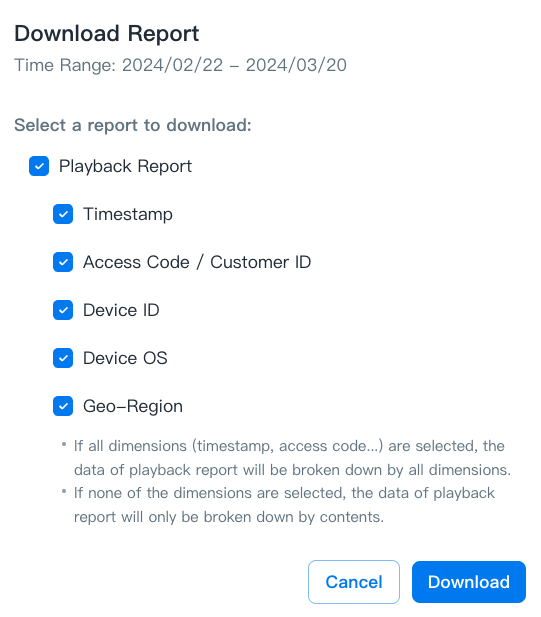
3. A pop-up window will display as shown below. You can select the dimensions you need, then press the “Download” button to start downloading.
-
If all dimensions (timestamp, access code...) are selected, the report will be broken down by all the dimensions.
-
If none of the dimensions are selected, the report will only be broken down by content type (VOD, AOD, livestream).
4. After the download is complete, the following notification will display:
Reports for Individual VOD Analytics
You can download the performance report in .csv format from the VODs tab in the Analytics module:
1. Refer to Individual VOD Analysis for accessing the VODs tab in the Analytics module.
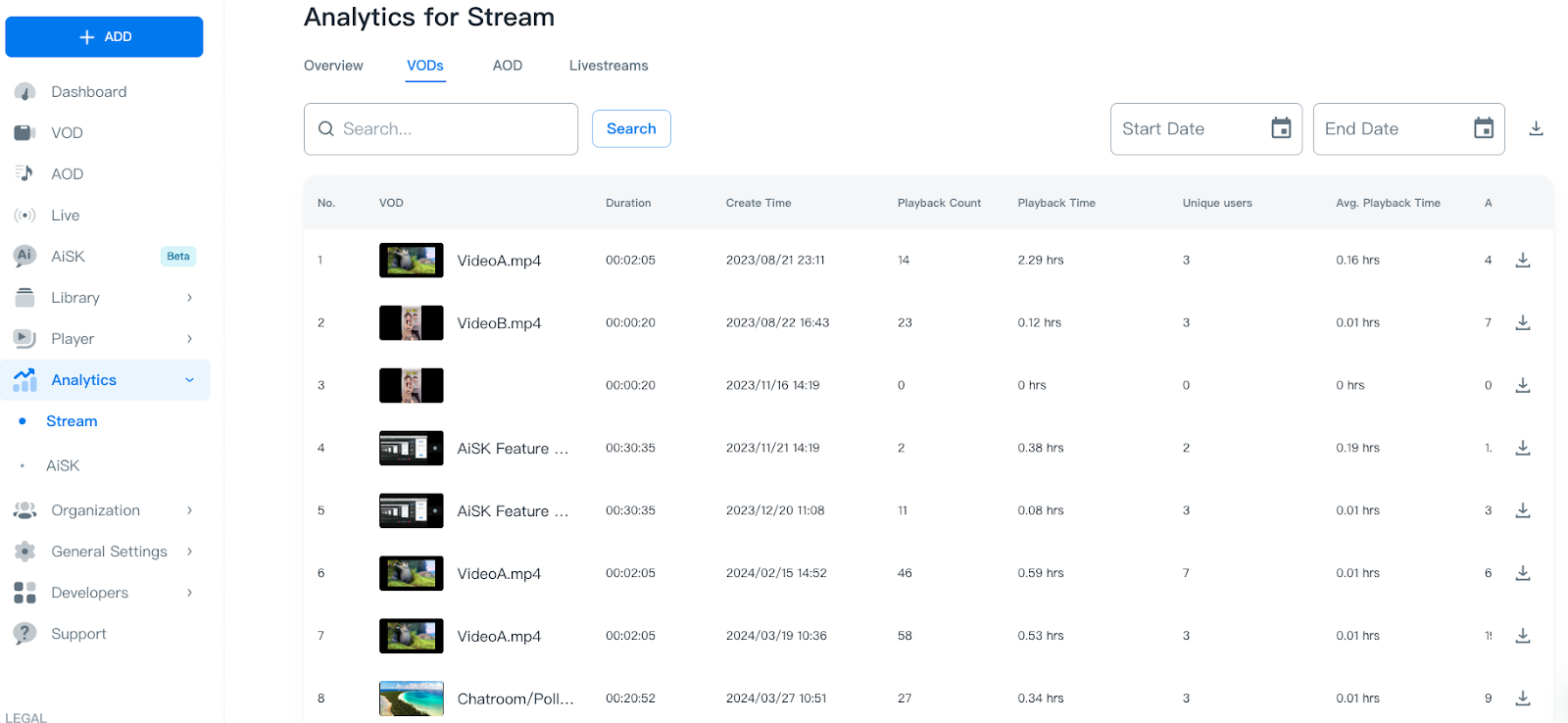
2. Set up the preferred start/end time of report to specify the period you want to download via the time filtering function. By entering the specified time period into the “Start Date” and “End Date” fields, the playback information will be displayed on the table.
Note:
- For data integrity, please exclude the dates within the last 2 days.
- If there is no content being played within the specified period of time, Playback Count and the related value will display 0.
- The playback information of deleted contents will also be displayed on the table.
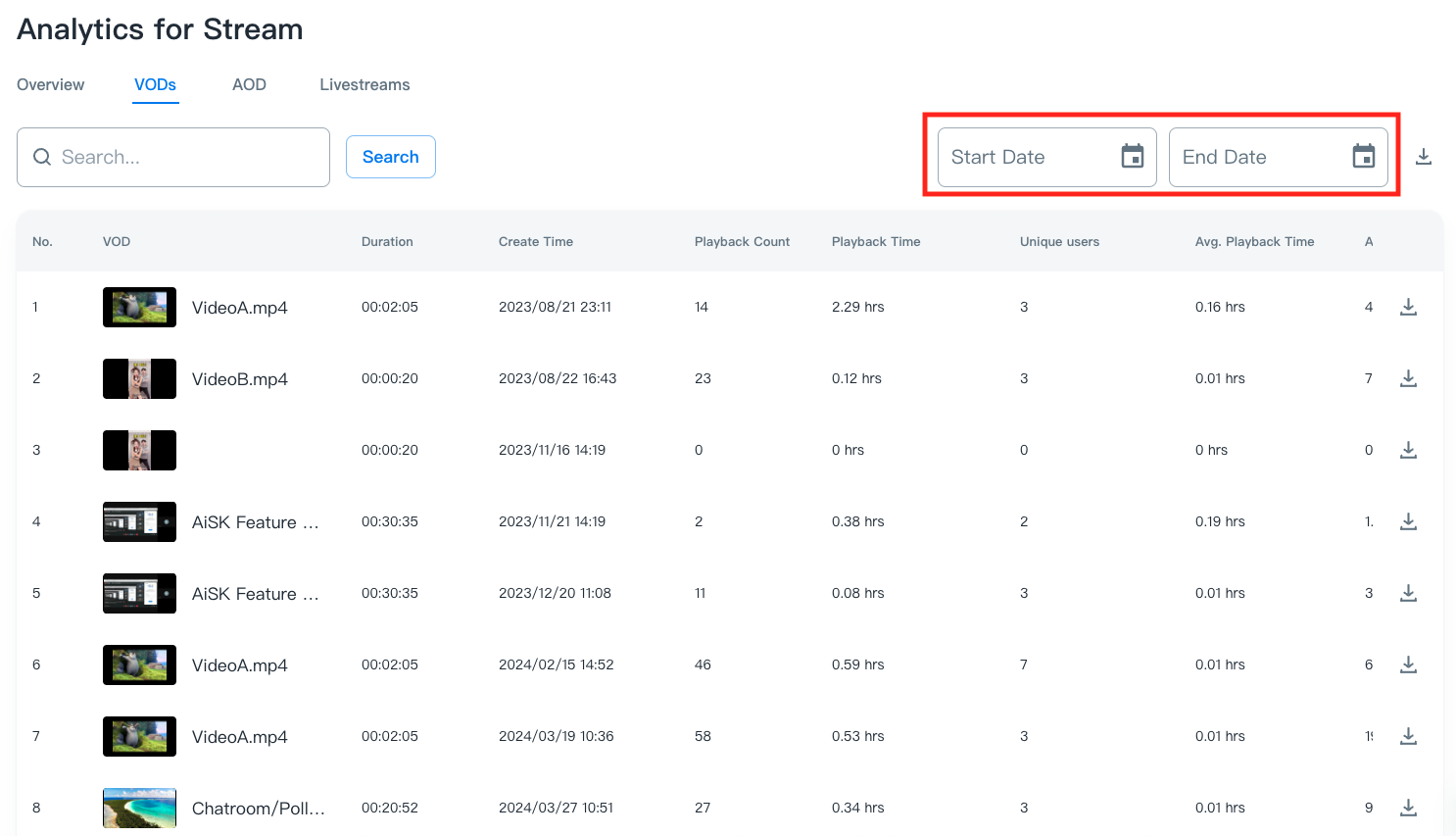
3. Click the download icon shown on the right side to download your report for the summary of all VODs or for each VOD.
- For the summary of all VODs
When clicking download icon next to the date field, the summary report will start downloading.
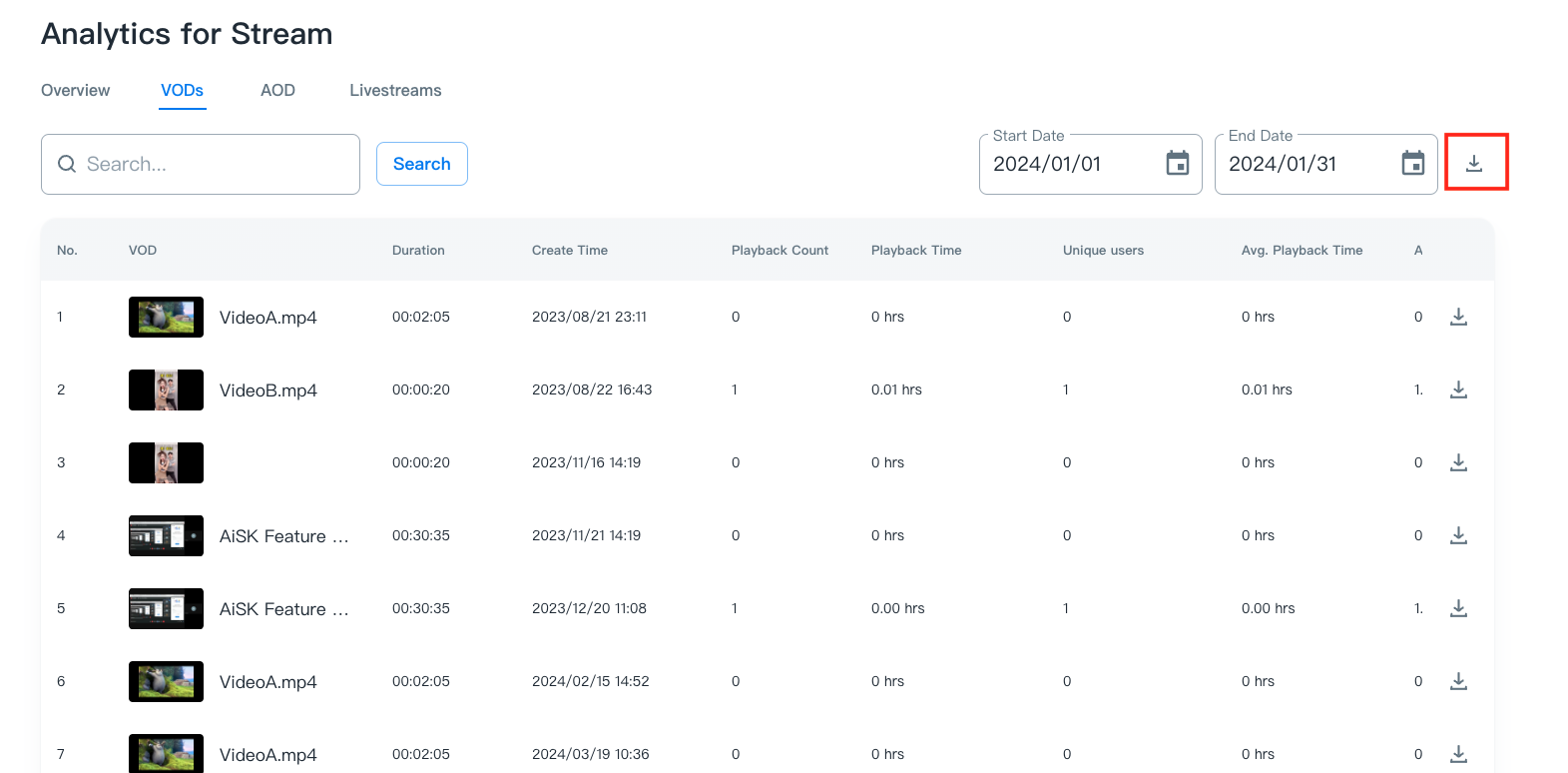
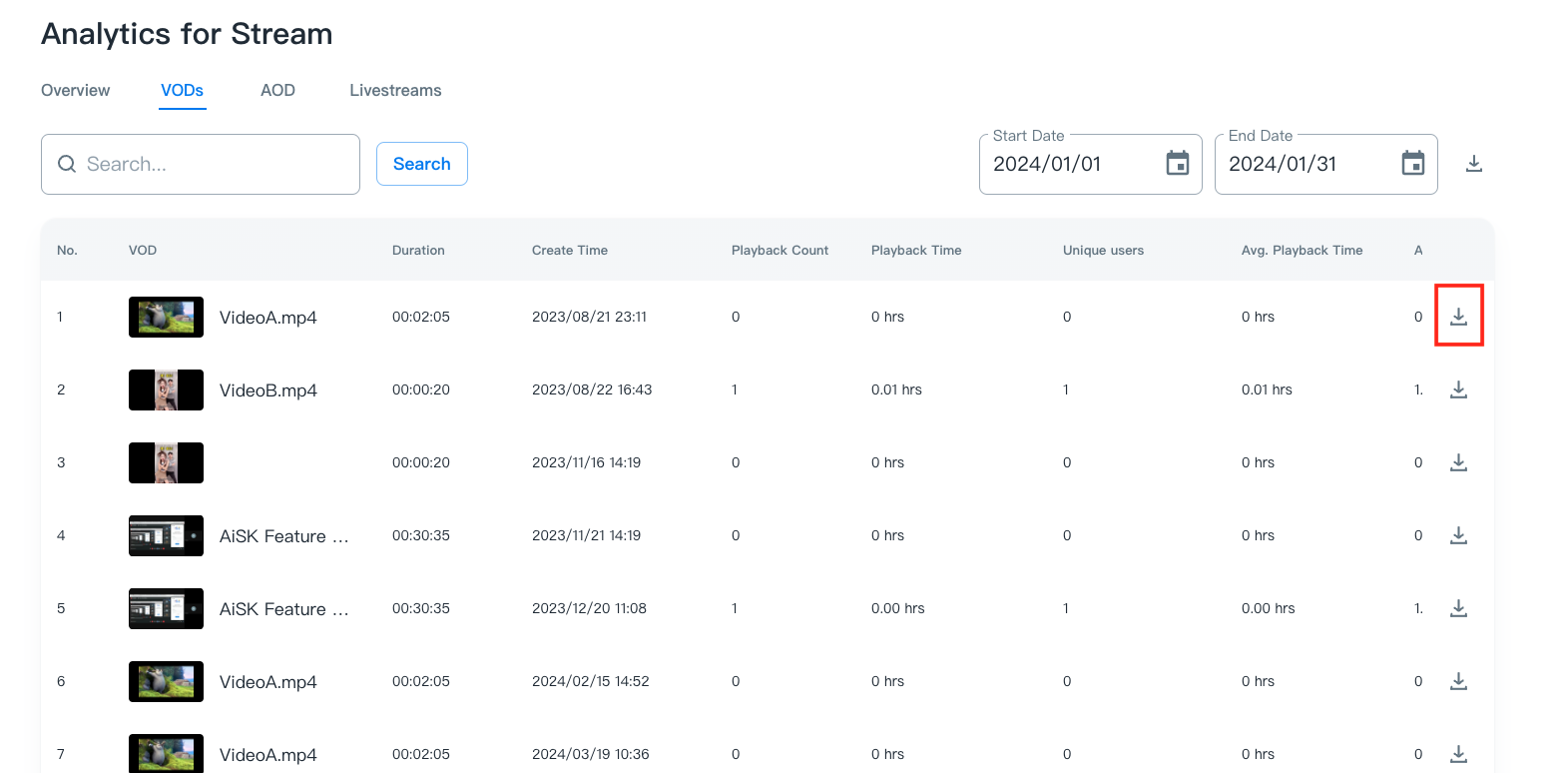
b. For each VOD
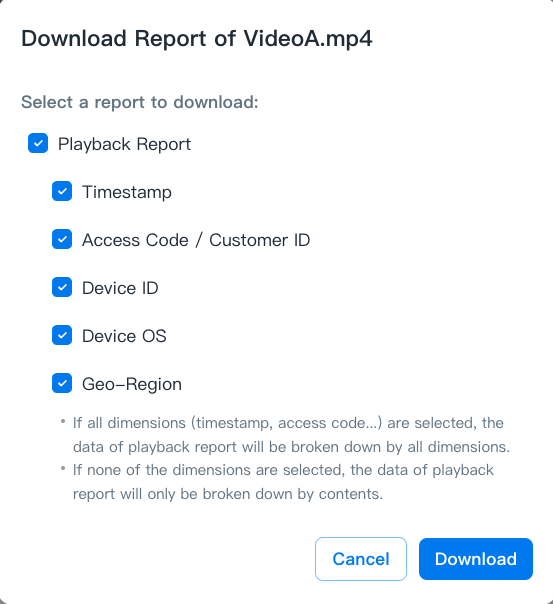
When clicking download icon, a pop-up window will show up. You can select the required dimensions, then press the “Download” button to start downloading.
-
If all dimensions (timestamp, access code...) are selected, the report will be broken down by all the dimensions.
-
If none of the dimensions are selected, the report will only be broken down by content type .
4. After the download is completed, a notification will display:
Reports for Individual AOD Analytics
You can download the performance report in .csv format from the AOD tab in the Analytics module:
1. Refer to Individual AOD Analysis for accessing the AOD tab in the Analytics module.
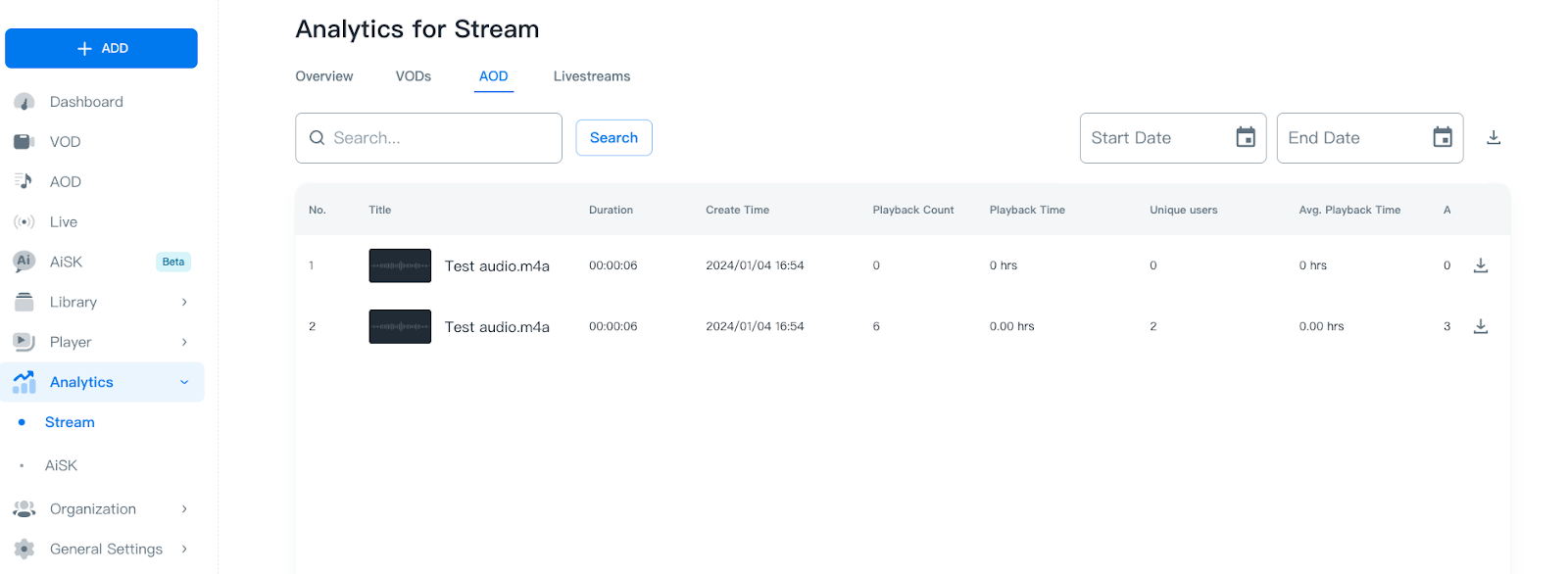
2. Set up the start/end time of report to specify the period you want to download via the time filtering function. By entering the specified time period into the “Start Date” and “End Date” fields, the playback information will be displayed on the table.
Note:
- For data integrity, please exclude the dates within the last 2 days.
- If there is no content being played within the specified period of time, Playback Count and the related value will display 0.
- The playback information of deleted contents will also be displayed on the table.
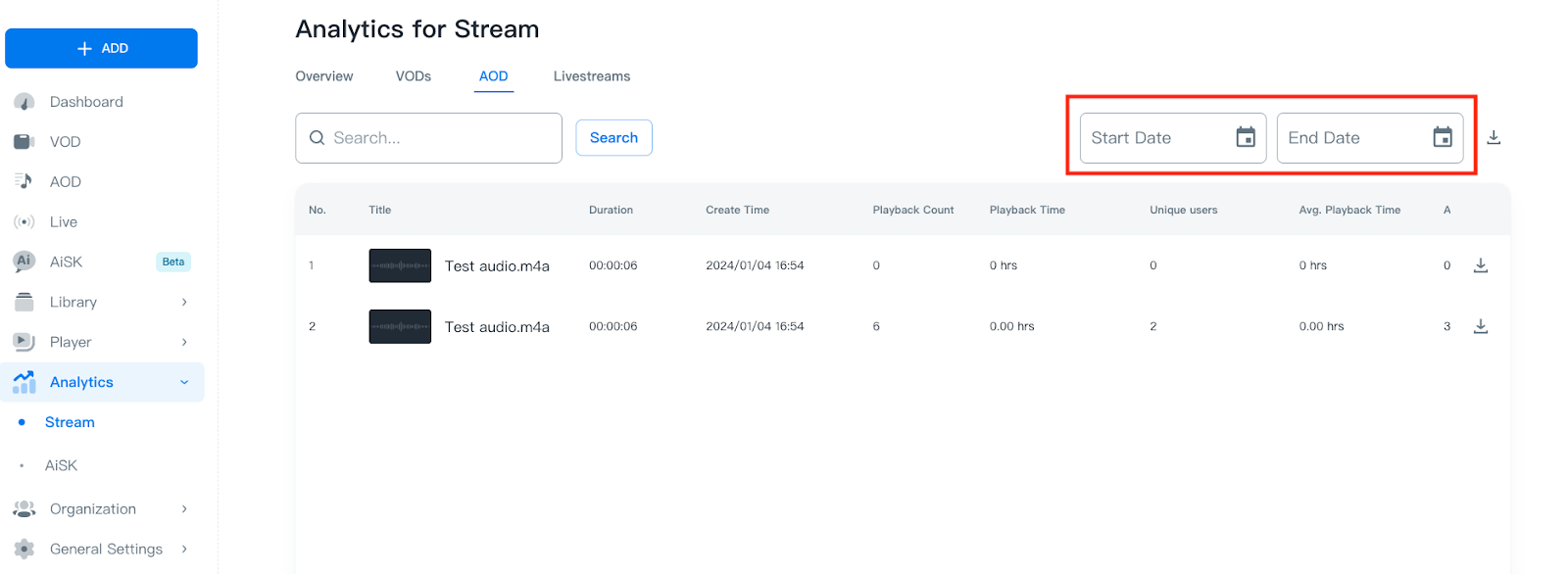
3. Click the download icon shown on the right side to download your report for the summary of all AODs or for each AOD.
- For the summary of all AODs
When clicking download icon next to the date field, the summary report will start downloading.
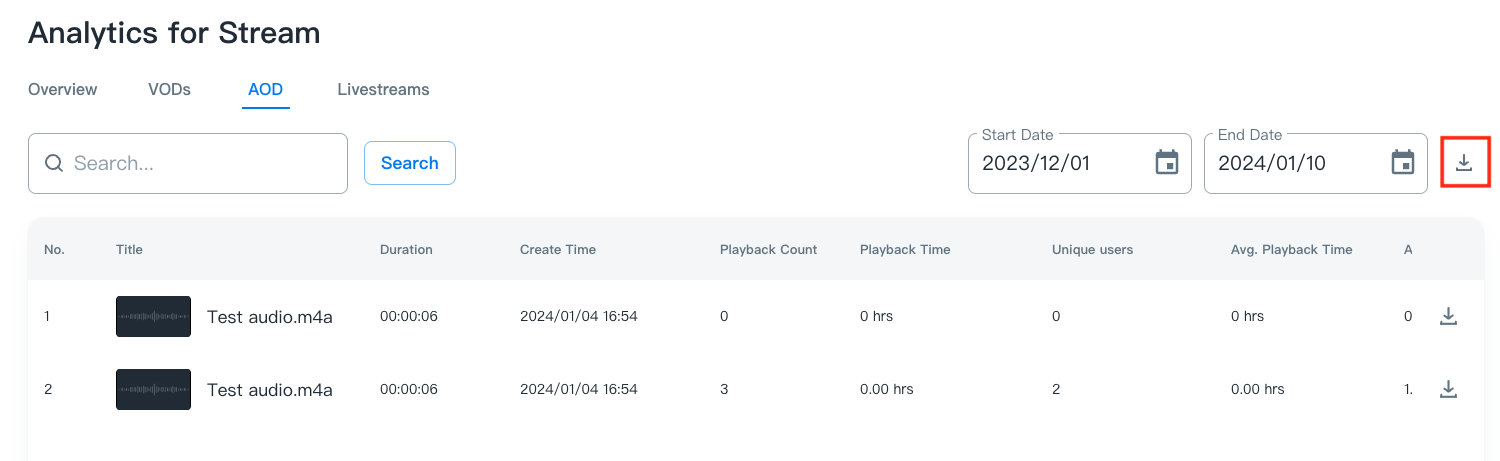
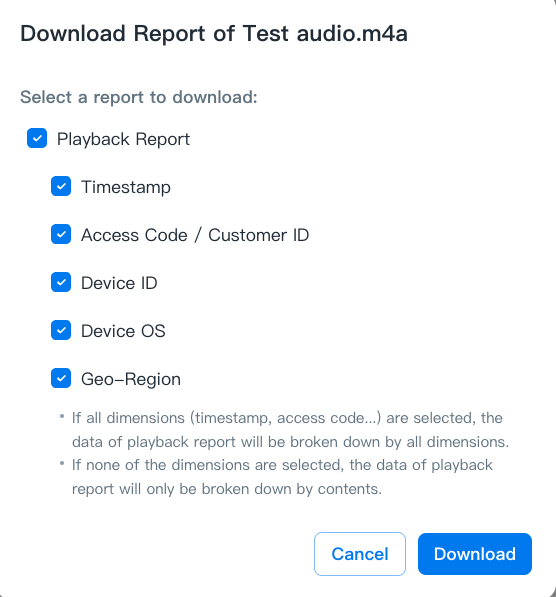
b. For each AOD
When clicking download icon, a pop-up window will show up. You can set up the start/end time of the report, and select the required dimensions, then press the “Download” button to start downloading.
-
If all dimensions (timestamp, access code...) are selected, the report will be broken down by all the dimensions.
-
If none of the dimensions are selected, the report will only be broken down by content type.
4. After the download is completed, a notification will display:
Reports for Individual Livestream Analytics
You can download the performance report in .csv format from the Livestreams tab in the Analytics module:
1. Refer to Individual Livestream Analysis for accessing the Livestreams tab in the Analytics module.
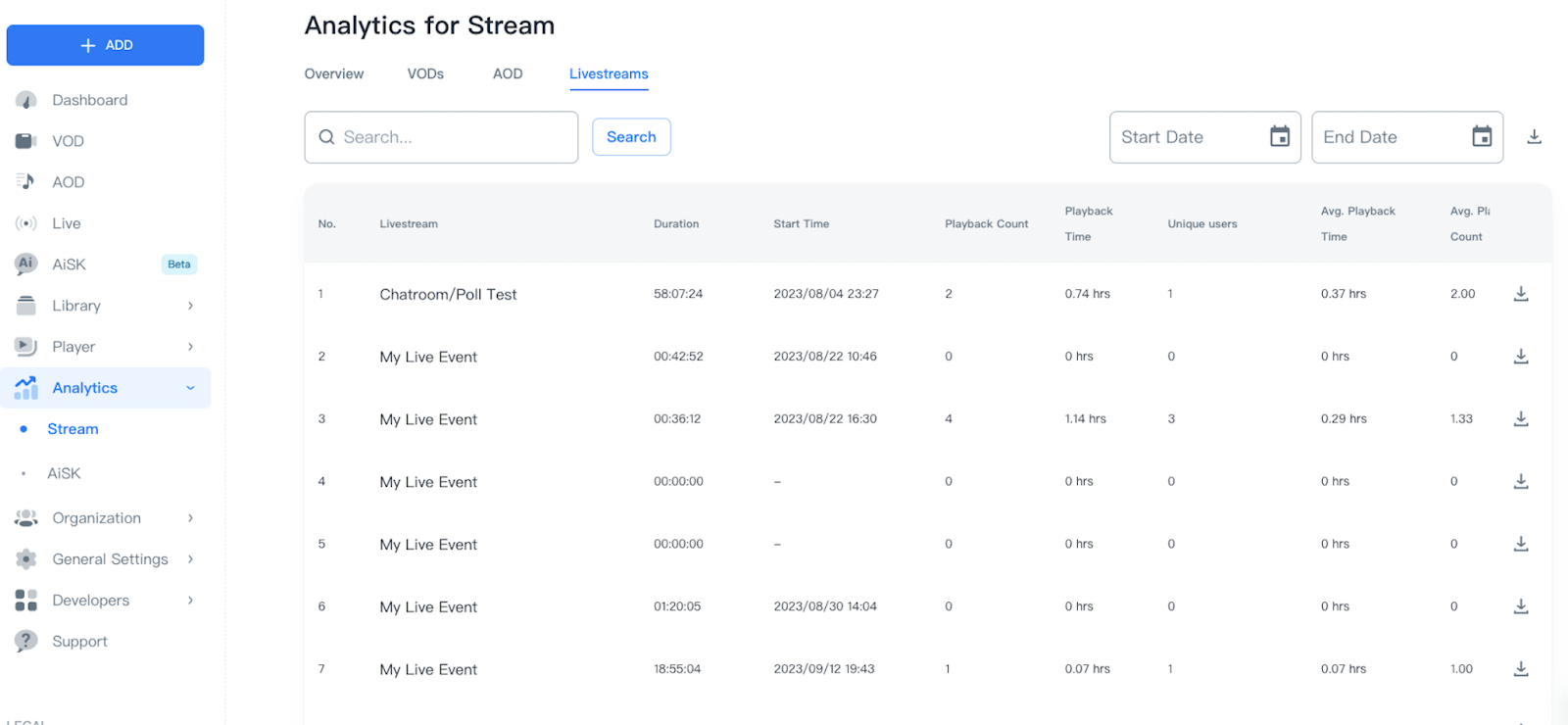
2. Set up the start/end time of report to specify the period you want to download via the time filtering function. By entering the specified time period into the “Start Date” and “End Date” fields, the playback information will be displayed on the table.
Note:
- For data integrity, please exclude the dates within the last 2 days.
- If the content has not been played within the specified period of time, Playback Count and the related value will display 0.
- The playback information of deleted contents will also be displayed on the table.
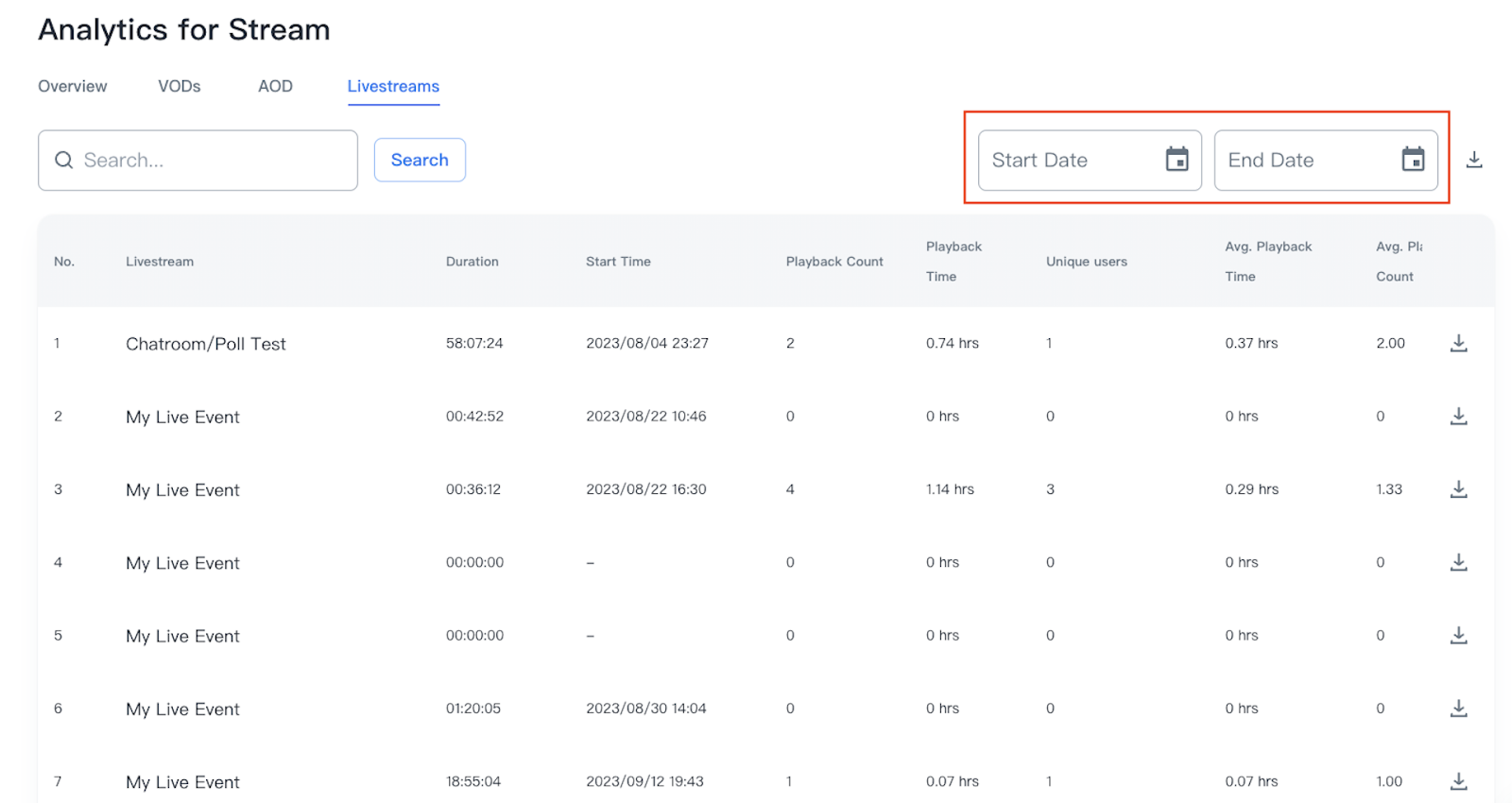
3. Click the download icon shown on the right side to download your report for the summary of all live events or for each live event.
- For the summary of all live events
When clicking download icon next to the date field, the summary report will start downloading.
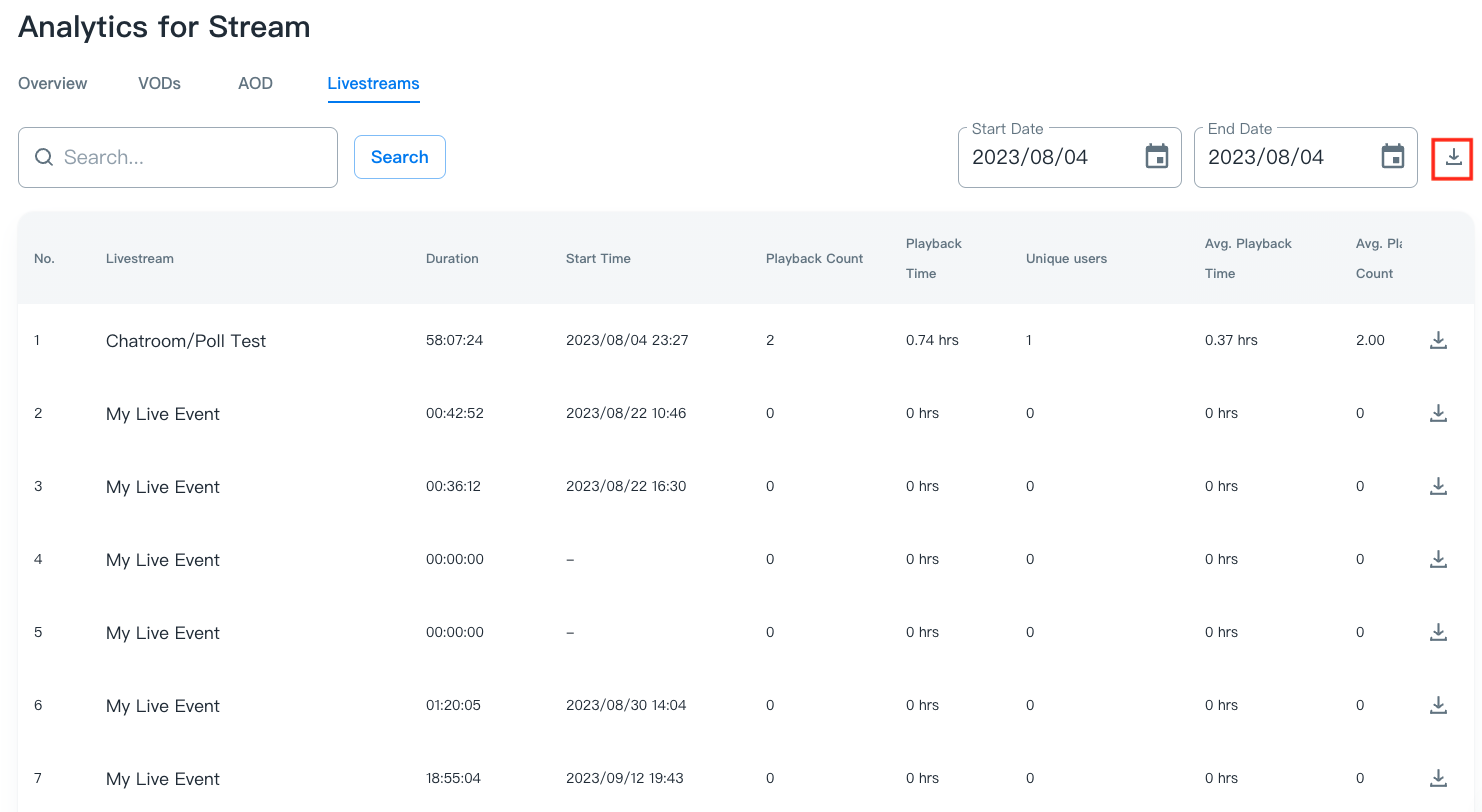
b. For each live event
When clicking download icon, a pop-up window will show up. You can set up the start/end time of the report, and select the required dimensions, then press the “Download” button to start downloading.
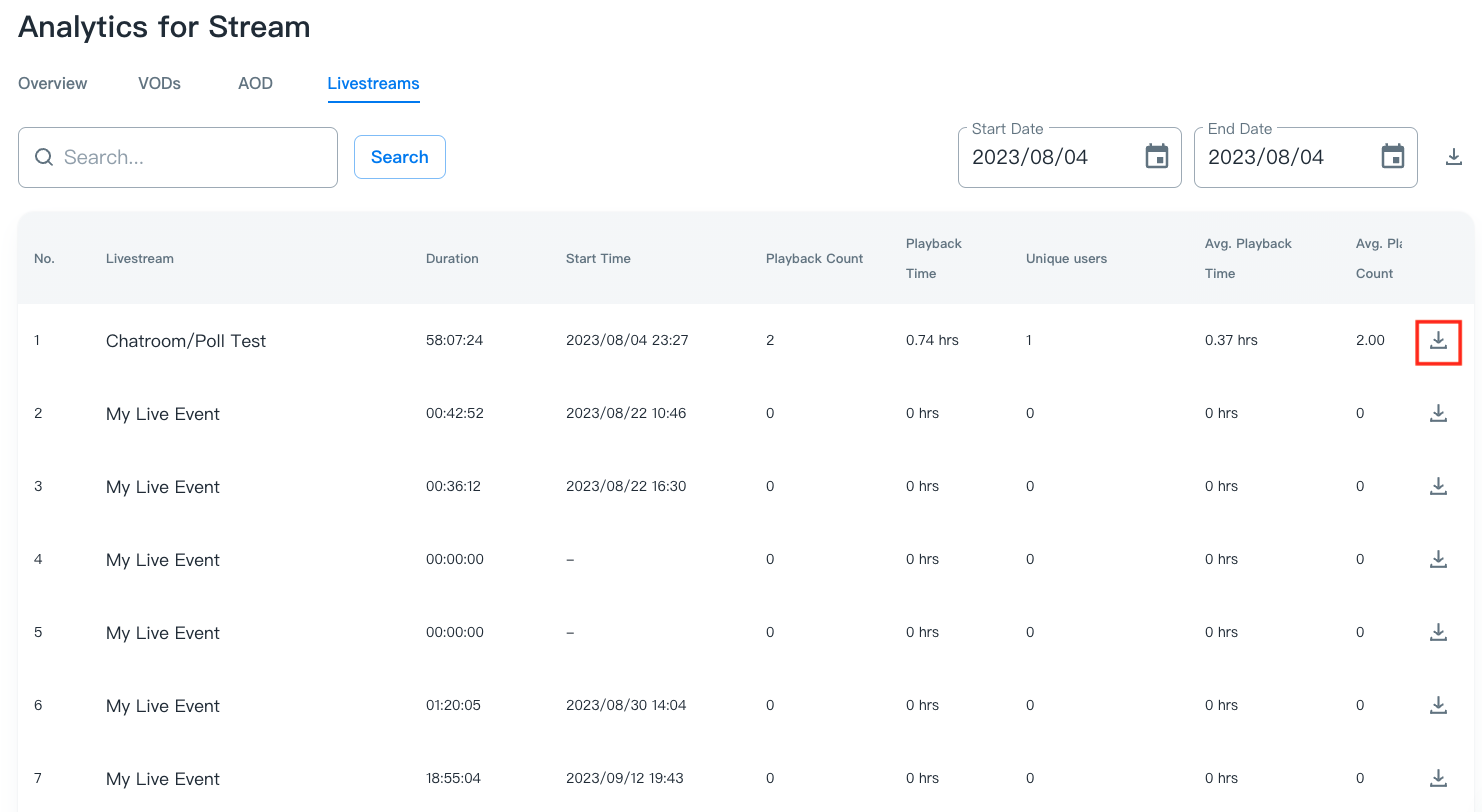
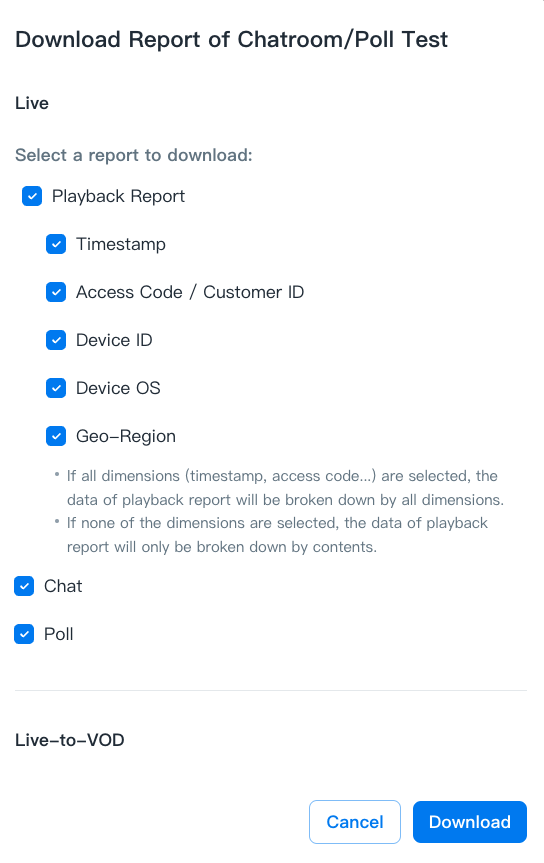
-
If all dimensions (timestamp, access code...) are selected, the report will be broken down by all dimensions.
-
If none of the dimensions are selected, the report will only be broken down by content type.
-
Live streaming and Live-to-VOD will be separated into separate files.
4. After the download is completed, a notification will display:
Report formats
The downloaded .csv files will come in the following formats:
- For overview/individual content report:
VOD
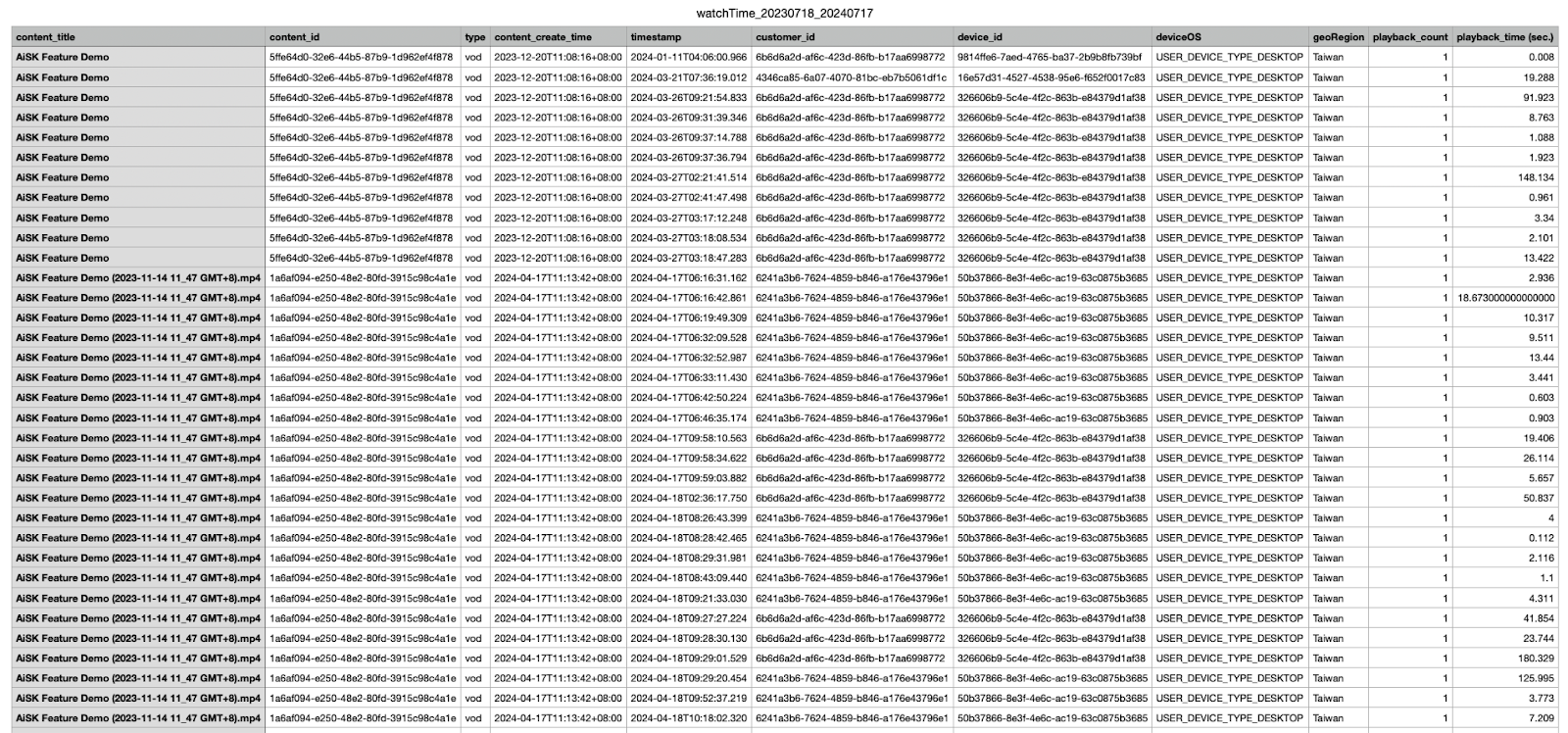
Live

AOD

- For summary report:
VOD

Live

AOD

- For chatroom:
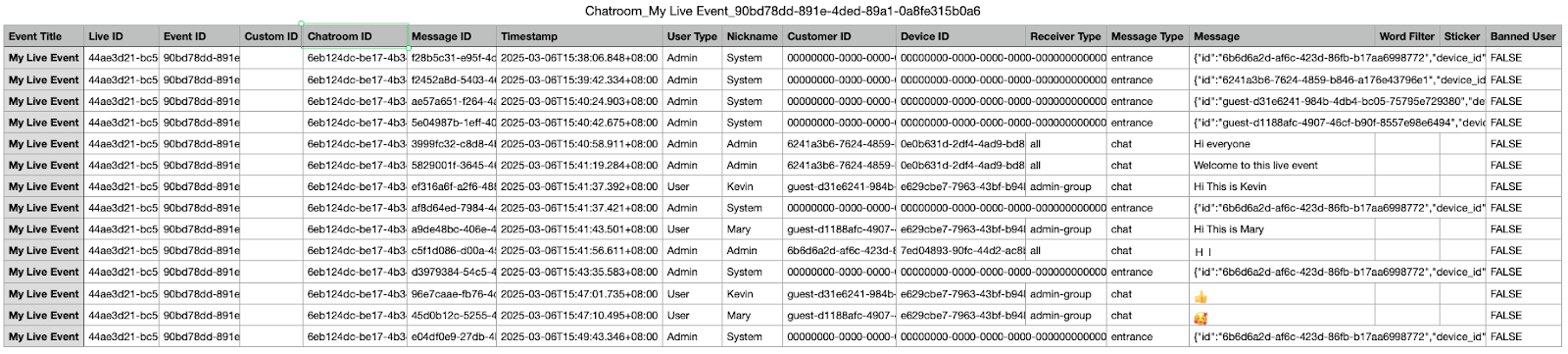
- For poll
- Poll’s Summary
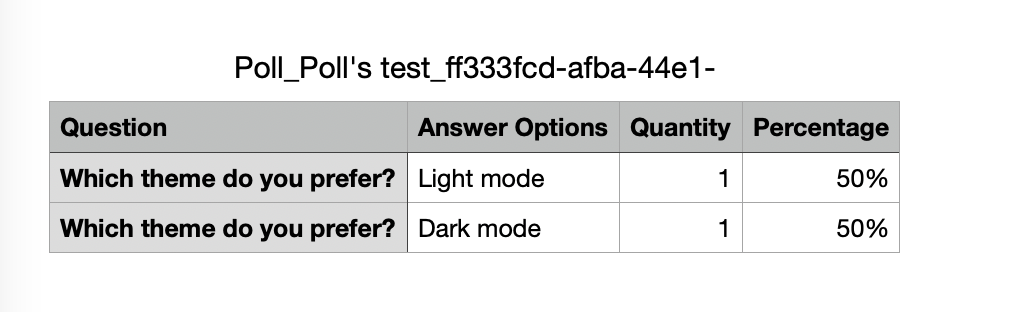
- Poll’s Submitting Logs

File name
Note: Start and end time will display as YYYYMMDD
Report type
Naming rule
Overview report
watchTime_<start_time>_<end_time>
VOD summary report
vod_summary_<start_time>_<end_time>
Individual VOD report
watchTime_vod_<content_title>_<start_time>-<end_time>
AOD summary report
aod_summary_<start_time>_<end_time>
Individual AOD report
watchTime_aod_<content_title>_<start_time>-<end_time>
Livestream summary report (Live streaming+Live-to-VOD)
live_summary_<start_time>_<end_time>
Individual Livestream report
(Live streaming)
watchTime_live_<content_title>
Individual Livestream report
(Live-to-VOD)
watchTime_live2vod_<content_title>_<start_time>-<end_time>
Chatroom report
Chatroom_<content_title>_
Poll report
- Poll_<content_title>_
_Summary - Poll_Poll_<content_title>_
_Submitting Logs
File format
Only supports the .csv format
File content
Note: the dimensions you unselected will not show in the downloaded file.
Report Name
Data
Definition
Overview/ Individual Content Report
content_title
The title of your content
content_id
The unique ID of your content
type
Streaming type: vod/aod/live/
content_create_time
The time your content was created
timestamp
The time your user started watching the content
customer_id
The unique ID of your user
device_id
The device ID of your user
deviceOS
The OS version of the device
geoRegion
The country where your user is located
playback_count
The playback times your user played
playback_time (sec.)
The length of content played by your user
Summary Report
vod_title/aod_title/event_title
The title of your content (VOD/AOD/Livestream)
vod_id/aod_id/live_id
The unique ID of your content
event_id
You can create different new events based on the same live_id. The ID of each event is event_id.
custom_id
The ID you can define by yourself
type
Streaming type: VOD/AOD/Llive/Live-to-VOD
broadcast_mode
The broadcast_mode you selected: BROADCAST_MODE_TRADITIONAL_LIVE or BROADCAST_MODE_DVR
vod_create_time/aod_create_time/event_create_time
The time your content (VOD/AOD/Livestream) was created
event_preview_time
The preview start time of live event
event_start_time
The time your content was started
event_end_time
The time your content was ended
duration
The length of content
label
The labels you set up for content
playback_count
The playback times your user played
playback_time
The length of content played by your user
unique_users
Refer to the number of distinct users without counting repeat visits to a website by the same user.
avg_playback_time
The average playback times your user played
avg_user_playback
The average length of content played by your user
unique_customer_id
The ID you can integrate to allow viewers to bring in during playback for records (e.g. Student ID)
CDN (GB)
The CDN consumption your users watched
Storage (GB)
The storage consumption of your content
DRM (request)
The usage count of DRM for each content
Chatroom
Event Title
The title of your event
Live ID
The unique ID of your live event
Event ID
You can create different new events based on the same Live ID. The ID of each event is Event ID.
Custom ID
The ID you can define by yourself
Chatroom ID
The unique ID of your chatroom
Message ID
The unique ID of each message
Timestamp
The time your user sent the message
User Type
The role of those who sent the message: Admin/User
Nickname
Viewer’s name
Customer ID
The unique ID of your user
Device ID
The device ID of your user
Receiver Type
The receiver who can see the message:
- all: all users can see the message
- admin-group: only admin can see the message
Message Type
- entrance: welcome message when user enters the chatroom
- chat: send chatting message
Message
The context which your viewer sent
Word Filter
The words which are filtered
Sticker
The sticker sent during chat
Banned User
The viewers which are blocked during live event
Poll
Question
Poll’s question
Answer Options
Poll’s answer options
Quantity
Number of viewers who chose the answer option
Percentage
Percentage of viewers who chose this answer option
Answer
Poll’s answer
Answer Submitted Time
The time when your viewer submitted the answer